User Management
The User Management page allows administrators to view, search, and manage user accounts across all connected identity providers. This is the central hub for user administration in GrantFlow.
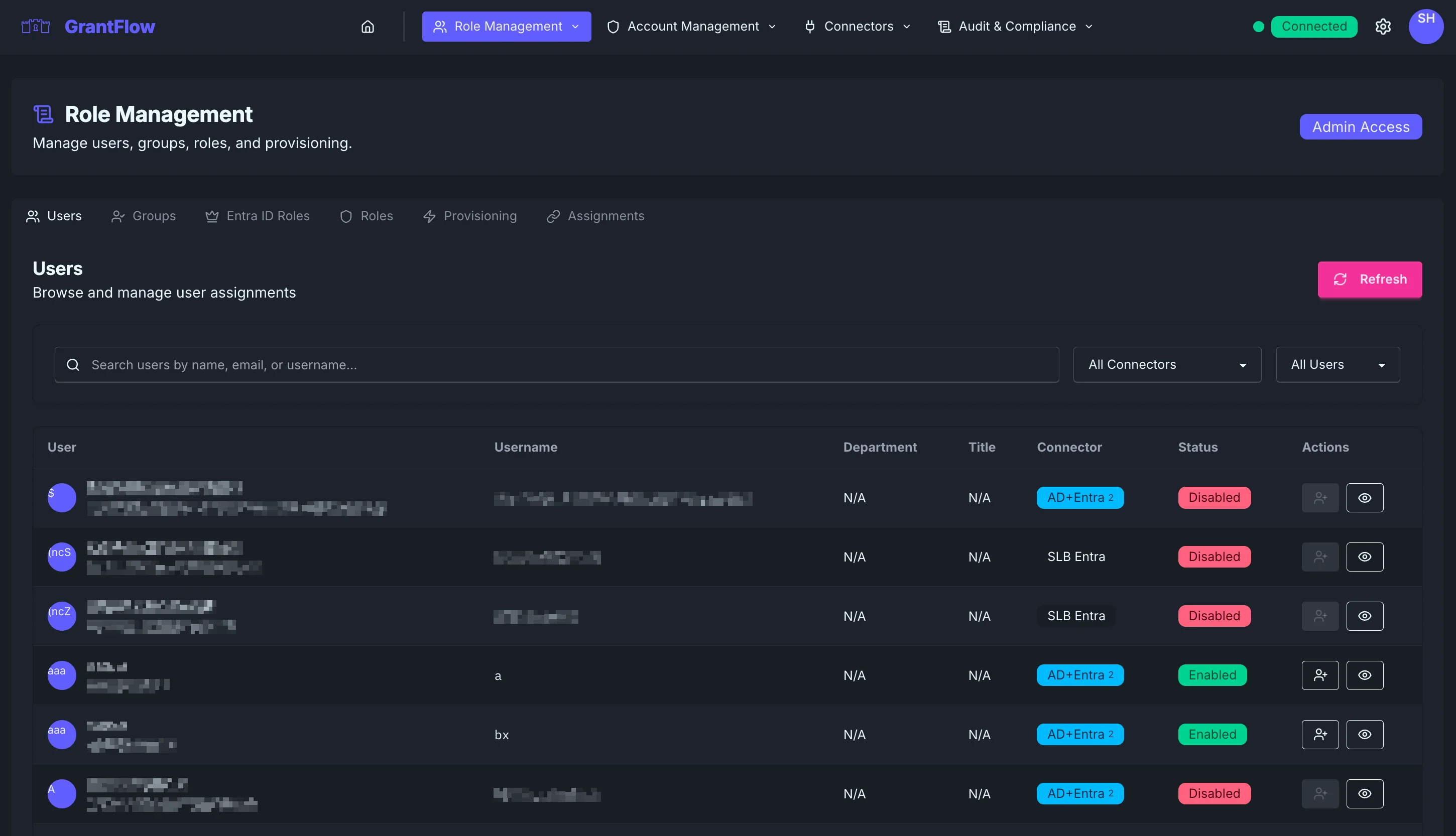
Overview
The User Management interface provides a comprehensive view of all users synchronized from your connected identity providers, such as Active Directory and Entra ID. It’s designed to make everyday administration fast while keeping a clear, auditable picture of user data.
User Table
The main table presents a unified list of users with both identity and system context so you can quickly find a person, understand where their account comes from, and take action when needed.
User Information
Each row includes a small avatar or initial for quick visual scanning, the display name, primary email, and login username. When available, the user’s department and title are shown to assist with disambiguation and access reviews.
System Information
System fields show which identity providers the user is synchronized from and whether the account is enabled or disabled. A combined badge like “AD+Entra” indicates the user exists in multiple sources; a small number may show how many connectors are linked. Action buttons give you quick access to common management tasks.
Search and Filtering
Search Bar
Use the search bar to find users by name, email, or username. Results update as you type so you can zero in on the right person immediately.
Connector Filter
Filter the list by connector to focus on users from a specific source, such as Active Directory or Entra ID, or choose All Connectors to see everyone. If you’ve configured multiple directories, each appears as an option.
Status Filter
You can also filter by account status to view all users, only enabled users, or only disabled users.
User Actions
Each user row includes action buttons that open detailed views and additional controls.
View/Edit Button
Click the eye icon to open the user’s profile. The profile shows complete user information along with role assignments, linked accounts, and recent activity, making it easy to understand current access and history at a glance.
More Actions Button
The three‑dots menu reveals additional actions such as editing properties, resetting passwords, enabling or disabling the account, viewing audit history, and managing role assignments. Available actions depend on your permissions and the user’s state.
Disabled Actions
Some options are unavailable when they don’t apply (for example, you can’t enable an account that is already enabled). System accounts are protected from unsafe changes, and all actions respect least‑privilege principles.
Multi-Connector Users
Some users are synchronized from more than one identity provider.
Identification
These users are marked with a compact badge such as “AD+Entra,” and a number may indicate the count of connectors involved. Details about each connector appear in the system column.
Management
GrantFlow provides an aggregated view of multi‑connector users, but authoritative changes should be made in the source directories. Account links are created and maintained automatically to provide a single view of the person.
User Details
Click a user row or the view button to open the profile view.
Profile Information
The profile includes full user details, contact information, organizational context, and manager relationships where available.
Access Assignments
You can review assigned GrantFlow roles, eligibility for activations, account checkout permissions, and whether the user has any approval authority.
Activity History
Activity history shows recent activation requests and approvals, checkout history, and relevant entries from the audit trail.
Pagination
For large directories, pagination helps you move through the user list efficiently. The page shows how many users are displayed and the total count, with previous and next buttons to navigate between pages. By default, 25 users are shown per page.
Live Data
User data is synchronized from your connected directories.
Sync Frequency
Entra ID changes are reflected near real‑time via Microsoft Graph, and Active Directory updates flow on a schedule through agents. A manual refresh option is also available when needed.
Data Source
User attributes come from the source directories. GrantFlow is read‑only for most user properties, while assignments and permissions are managed within GrantFlow.
Best Practices
Regular Reviews
Periodically review the user list for accuracy. Confirm that enabled and disabled states align with employment status, look for orphaned accounts, and ensure that multi‑connector users are consistent across sources.
Security
Disable accounts promptly when users leave the organization. Pay special attention to users with privileged role assignments, monitor for suspicious activity, and perform regular access certifications.
Compliance
Keep documentation of user access levels up to date and ensure user attributes are current. Export filtered user lists as needed for compliance reporting and periodically review department and title information for accuracy.
Common Tasks
Finding a Specific User
Use the search bar, type a name, email, or username, and watch results update automatically until you find the exact user.
Reviewing Department Users
If you want to review a department, filter by the relevant connector (if helpful), sort by department, review each user’s access assignments, and verify that eligibility matches job requirements.
Disabled Account Management
To manage disabled accounts, filter the list to “Disabled Only,” review which accounts should be retained or removed, and document any exceptions.
Multi-Connector Reconciliation
For multi‑connector reconciliation, identify the affected users, verify attributes across sources, check for sync issues, and share discrepancies with the directory owners for correction.
Troubleshooting
User Not Appearing
If a user is missing, verify they exist in the source directory, confirm the connector is healthy, check the last sync time, run a manual sync if available, and review connector logs for errors.
Incorrect Information
If profile information is incorrect, confirm the data in the source directory, validate connector configuration, trigger a manual sync, and loop in the directory administrators if issues persist.
Cannot Perform Action
If an action appears disabled, make sure you have sufficient admin permissions, confirm the user’s status allows the action, and review any error messages or system logs for details.
Sync Issues
If users aren’t synchronizing, check the connector status under Admin → Connectors, verify agent connectivity for AD, review sync logs, and confirm directory permissions are sufficient. Contact support if the issue persists.
Keyboard Shortcuts
Use the arrow keys to navigate rows, Enter to open the selected user’s details, Esc to close the details panel, and Ctrl/Cmd + F to focus the search bar.
Export and Reporting
Export User List
You can export the current (filtered) user list to CSV for spreadsheet analysis. Exports respect your access permissions so sensitive data remains protected.
Reports
Common reports include active users, disabled accounts, multi‑connector users, privileged users, and department distributions. Use filters to generate precisely the subset you need.