Connector Management
The Connector Management page allows administrators to manage identity provider connections and on-premises Active Directory agents. This is where you configure how GrantFlow connects to your identity systems.
Overview
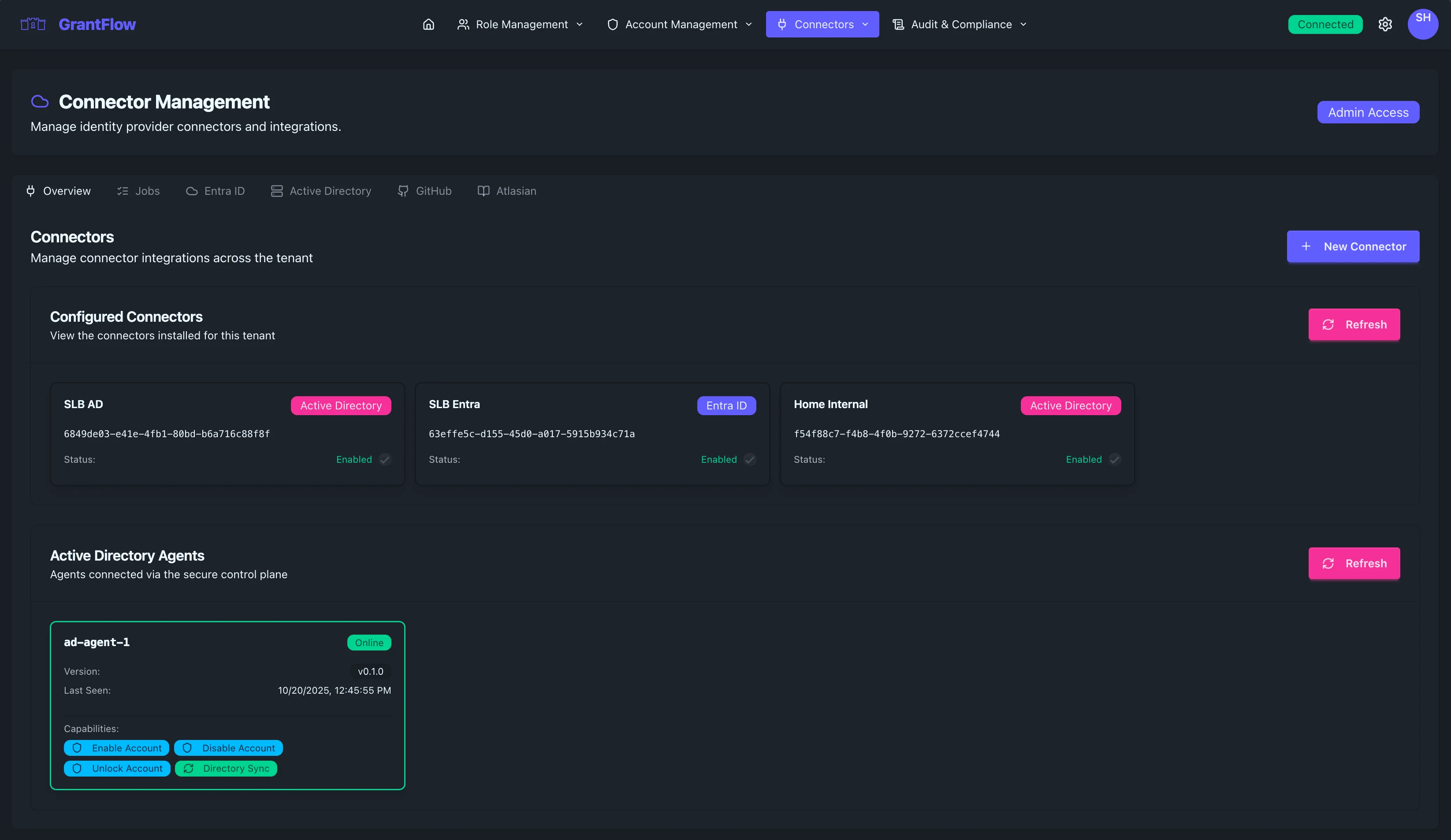
The Connector Management interface brings together two complementary areas. In Configured Connectors, you set up and manage your identity provider integrations. In Active Directory Agents, you observe and manage on‑premises agents that execute directory operations. Together, these views show both how GrantFlow connects to your systems and the health of the components that carry out changes.
Configured Connectors
Connectors integrate GrantFlow with your identity providers and target systems.
Connector Types
GrantFlow supports several connector types, each designed for a specific identity platform or target system.
Active Directory (AD)
Use the Active Directory connector to integrate with on‑premises AD. This connector requires a GrantFlow agent installation and communicates securely with the GrantFlow control plane (via the Agents service) over HTTPS. Once configured, the connector supports group membership management as well as account enable and disable operations.
Entra ID (Azure AD)
The Entra ID connector integrates with Microsoft’s cloud identity (formerly Azure AD) directly through the Microsoft Graph API. No agent is required. This connector manages role assignments and supports user and group synchronization.
GitHub (Coming Soon)
The GitHub connector will provide organization and team membership management as well as repository access control when it becomes available.
Atlassian (Coming Soon)
The Atlassian connector will enable Jira project access control, Confluence space permissions, and broader organization administration.
Connector Cards
Each configured connector appears as a card summarizing its identity and health. You’ll see a friendly connector name (for example, “SLB AD”), a type badge that indicates whether it’s Active Directory, Entra ID, or another system, and a unique system identifier (UUID) you can reference for troubleshooting or automation. A clear status label shows the current operational state, and an enabled/disabled indicator reflects whether new operations will be dispatched through the connector.
Connector status helps you understand readiness at a glance. When a connector is Enabled, it is active and operational. A Disabled state indicates it has been intentionally paused and will not accept new work. A Warning state signals issues while the connector remains functional, and Error means the connector is not functioning and needs attention.
Creating a New Connector
Click New Connector to add a new identity provider connection. The setup flow differs slightly based on the connector type.
Entra ID Connector
Prerequisites (Entra ID)
You’ll need an Azure AD (Entra ID) tenant and an app registration with appropriate Microsoft Graph permissions, typically including User.Read.All, Group.Read.All, RoleManagement.ReadWrite.Directory, and Directory.Read.All.
Configuration Steps (Entra ID)
Start with basic information by entering a connector name, a brief description, and the Azure Tenant ID. Next, configure authentication by providing the Client ID (Application ID) and either a Client Secret or a certificate, along with the appropriate authority URL. After that, choose your synchronization preferences, including the sync frequency, any user filters (by groups or attributes), and how you want groups to be synchronized. Finally, test the connection to verify credentials, confirm API access, and validate required permissions before saving.
Active Directory Connector
Prerequisites (Active Directory)
For on‑premises Active Directory, ensure you have a domain available, a GrantFlow agent installed on a domain‑joined server, and a completed certificate enrollment for the agent. The agent must be able to reach the Agents service at agents.grantflow.cloud over HTTPS (TCP/443).
Configuration Steps (Active Directory)
Begin by entering the connector’s basic details, including its name, a description, and the AD domain name. Assign one or more registered agents, configuring failover if you have multiple agents and setting any agent preferences relevant to your topology. Next, define sync settings, such as which organizational units and groups to sync, attribute‑based user filters, and the sync schedule. Finally, enable the operations you intend to use (like account enable/disable or group management) and set any default policies governing those operations.
Editing Connectors
To modify an existing connector, open its card, adjust the configuration as needed, test the connection to validate the changes, and then save. Changes to synchronization settings may trigger a resync depending on scope.
Changes to sync settings may require a full resync. This can take several minutes depending on directory size.
Disabling Connectors
You can temporarily disable a connector if you need to pause new operations. Toggle the status to disabled and confirm the action. Any operations already in progress will complete, and no new operations will start until the connector is re‑enabled.
Disabling a connector prevents new role activations that depend on it and pauses user synchronization. Existing activations remain active until their scheduled end, and auditing continues so actions remain traceable.
Deleting Connectors
To permanently remove a connector, open its details, choose Delete, and confirm. This is a destructive action intended for decommissioning.
Deletion cannot be undone. Sync history is removed, any roles that reference this connector will break until reassigned, and you may need to update role mappings to alternative connectors.
Active Directory Agents
Agents enable GrantFlow to perform operations on on-premises Active Directory.
Agent Architecture
The secure control plane design means agents connect outbound‑only, so you don’t need to open inbound firewall ports. Agents authenticate with mTLS using certificate‑based identities, and they communicate with the Agents service at agents.grantflow.cloud over HTTPS (TCP/443) for job execution. No long‑lived credentials are stored on the agent. Capabilities include enabling and disabling accounts, unlocking accounts, adding and removing group memberships, synchronizing directory data, and verifying passwords for account checkout scenarios.
Agent Cards
Each agent appears as a card that surfaces its identity and health: a friendly name (such as “ad‑agent‑1”), a status badge showing whether it is online or offline, the running version, the last time it checked in, and the capabilities it supports. Status indicators help you triage quickly: Online indicates a healthy connection, Offline means the agent isn’t connected, Degraded suggests the agent is connected but experiencing issues, and Unknown is shown when status cannot be determined.
Installing an Agent
To install a new Active Directory agent, follow this sequence.
Prerequisites
Prepare a domain‑joined Windows Server 2016+ (or Linux with systemd) host with the appropriate runtime. Ensure outbound network connectivity to agents.grantflow.cloud over HTTPS (TCP/443) and have domain credentials with the minimum permissions required for your intended operations.
Installation Steps
Download the agent installer from the GrantFlow admin portal and verify its checksum. Enroll the agent by running the enrollment command, specifying your tenant ID. During enrollment, the agent generates a certificate signing request (CSR) which is signed by Azure Key Vault to establish its mTLS identity. Configure the agent with domain settings and a dedicated service account, define which capabilities it should advertise, and set up logging appropriate for your environment. Start the agent service and verify the connection by confirming it appears in the portal. Finally, assign the agent to your AD connector and, if you have multiple agents, set priority or failover preferences.
Agent Monitoring
Heartbeat telemetry keeps you informed about connectivity. Agents send a heartbeat roughly every 30 seconds, and the “Last Seen” field reflects the most recent check‑in; alerts can be triggered if an agent is offline for more than a few minutes. For job execution, monitor success rates, average execution time, failed jobs, and queue depth to spot bottlenecks early. Agents also perform self‑health checks covering domain connectivity, Agents service connectivity, certificate validity, disk space, and memory usage.
Agent Maintenance
Updating Agents
To update an agent, install the new version in a controlled sequence: stop the service, apply the update, start the service again, and verify in the portal that the agent is healthy.
Use rolling updates for multiple agents to maintain availability.
Rotating Certificates
Agent certificates rotate automatically. Certificates typically have a 90‑day lifetime and auto‑renew starting about 30 days before expiration. You can also trigger manual renewal from the agent configuration if needed.
Troubleshooting Agents
If an agent is offline, confirm the service is running, verify outbound connectivity to the Agents service over HTTPS (TCP/443), check certificate validity, and review agent logs. When jobs are failing, validate domain credentials and AD permissions, review the job queue, and rule out transient network issues. For performance issues, monitor resource usage, keep an eye on queue depth and concurrent job limits, and consider adding agents to spread load.
Connector Operations
User Synchronization
Entra ID Sync
Entra ID synchronization is near real‑time using Microsoft Graph webhooks, with periodic incremental updates (for example, every few minutes) and a daily full sync to ensure consistency.
Active Directory Sync
Active Directory synchronization runs on a schedule via agents. Many deployments sync every 15 minutes and perform a daily full sync, with an option to trigger a manual sync when necessary.
Sync Conflicts
When conflicts occur, the source system remains authoritative. Attribute changes generally follow a “last sync wins” rule, users synchronized through multiple connectors are merged into a single identity where possible, and all conflicts are logged for later review.
Operation Status
To monitor connector operations, navigate to Connectors → Jobs. The view shows pending, in‑progress, completed, and failed operations, giving you a real‑time picture of provisioning activity. Each job includes the operation type, the target resource, its current status, start and completion times, and detailed error information when a job fails.
Best Practices
Connector Configuration
For secure connector configuration, use least‑privilege service accounts, rotate credentials regularly, enable monitoring and alerting, and review logs on a routine schedule. For reliability, deploy multiple agents per critical AD domain, configure failover, monitor agent health, and plan maintenance windows to minimize impact. To optimize performance, tune sync schedules, filter unnecessary objects to reduce load, monitor sync duration, and scale out agents as demand grows.
Agent Deployment
Design agent deployments for high availability by placing multiple agents per AD domain and, where possible, across different physical locations. Configure automatic failover and distribute operations to balance load. Harden security with dedicated service accounts, minimal AD permissions, certificate‑based authentication, sensible network segmentation, and regular patching. For observability, enable detailed logging, monitor resource usage, track job success rates, and set up alerts so you can act quickly.
Troubleshooting
Connector Issues
For connection failures, verify credentials, check network connectivity and firewall rules, and confirm that the connector’s permissions are sufficient. For synchronization problems, review sync logs, validate filter configuration, ensure you are within any provider quota limits, and test API access end‑to‑end.
Agent Issues
If an agent won’t connect, validate outbound connectivity, check certificate validity, review agent configuration, and inspect control plane logs. When operations fail, verify the required AD permissions and that target objects exist, review operation logs for specifics, and test domain connectivity. If you observe performance degradation, monitor resource usage and queue depth, review concurrent limits, and scale agents if necessary.
Security Considerations
Access Control
Limit who can manage connectors, audit configuration changes, and conduct regular access reviews. Keep duties separated so no single admin can introduce and approve risky changes.
Credential Management
Store credentials in a secure secret store such as Azure Key Vault, rotate them regularly, monitor for signs of compromise, and prefer managed identities where the platform supports them.
Network Security
Favor outbound‑only agent connections protected by mTLS, avoid opening inbound ports, and isolate network segments where practical to reduce blast radius.