Dashboard
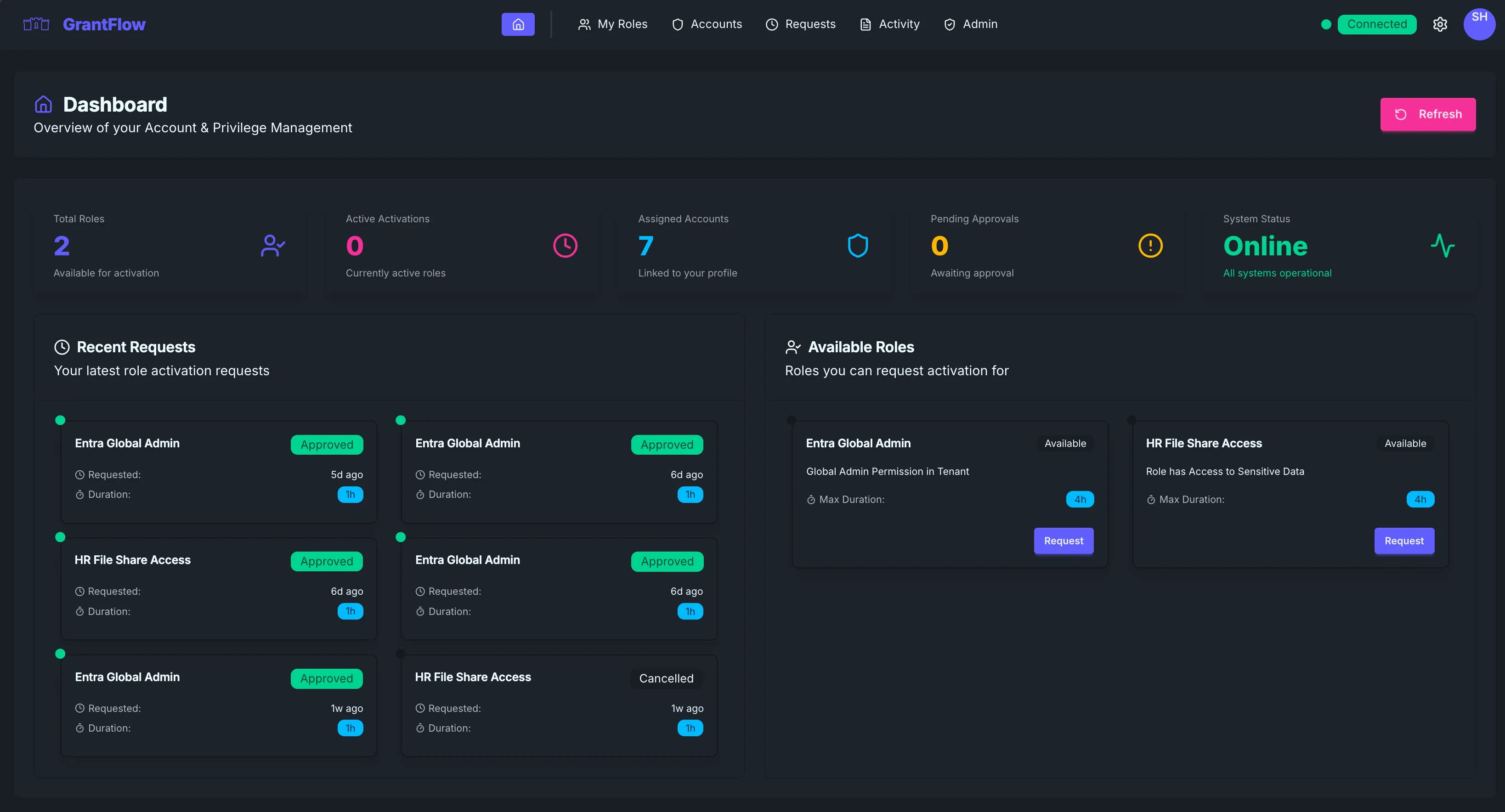
The Dashboard is your hub for monitoring and managing privileged access in GrantFlow. It gives you a clear, at‑a‑glance view of what matters right now: active sessions, recent requests, and the roles you can activate.
New to GrantFlow? Skim this page, then see My Roles to request your first activation. If you use scoped admin accounts, also check Account Checkout.
Overview
The Dashboard surfaces the most important information in a few focused sections so you can see status and take action without digging through menus.
Statistics cards
At the top of the page, a row of cards summarizes your current state. You’ll see how many roles you’re eligible to activate, how many activations are currently running, whether you have privileged accounts available to check out, and if there are any requests awaiting your decision when you serve as an approver. A system status card rounds out the view by indicating overall platform health. Each card doubles as a shortcut—select it to jump directly to the underlying page for details and actions.
Recent requests
Below the cards, the recent requests list shows the latest activation activity at a glance. Each entry includes the role you requested, the current status (for example Approved, Pending, Denied, or Cancelled), when you submitted it, and the requested duration. This makes it easy to confirm progress without leaving the dashboard, especially when you’re waiting on approvals.
Available roles
The Available roles section highlights the roles you can activate right now. Each role card names the role, describes what it grants, shows its current availability, and lists the maximum activation duration. From here you can open details or request activation directly—most users start their work from this section.
Key features
Live updates
The dashboard auto‑refreshes so you don’t need to reload the page. A “Live updates” badge in the header confirms real‑time syncing is active.
Quick actions
Common actions are always close at hand. Use Refresh if you want to manually reload data, click Request on a role card to begin an activation, or select any statistics card to navigate to its detailed view.
Navigation
The left navigation lets you move quickly across the application. My Roles is where you request activations, Accounts handles privileged account checkout, Requests is the approval queue for approvers, Activity shows your audit history, and Admin appears for users with administrative permissions.
Connection status
A small indicator in the top‑right shows whether the app is online and syncing. When connected, actions execute immediately; if disconnected, you may see delays and should check your network.
User menu
Click your profile initials (top‑right) to access user settings and sign out.
Common workflows
Most days follow a simple pattern: start by requesting the role you need from Available roles, keep an eye on Active activations to manage time remaining or request an extension, review Pending approvals if you’re an approver, and use Activity when you need to investigate the audit trail for an activation.
Troubleshooting
If data looks stale, try Refresh and confirm your connection status. If roles appear to be missing, verify you’re in the correct tenant and revisit Access & Roles. For approval issues, ensure you’re assigned as an approver for the relevant policy. When the system status card shows warnings, ask an administrator to review connector health.
FAQ
Can I customize the dashboard? The layout is standardized for consistency; the content adapts to your assignments and roles.
What if cards don’t match other pages? Use Refresh. If there’s still a mismatch, check your connection and try again.
Where do I see more detail for a card? Select the card to navigate to its page (for example Requests or My Roles) and see full details.