Pending Requests & Approvals
The Requests page is where you view, approve, and track role activation requests. It serves different purposes depending on your role:
Approvers use it to review and decide on pending requests, while all users can track the status and history of their own and system‑wide activations.
Overview
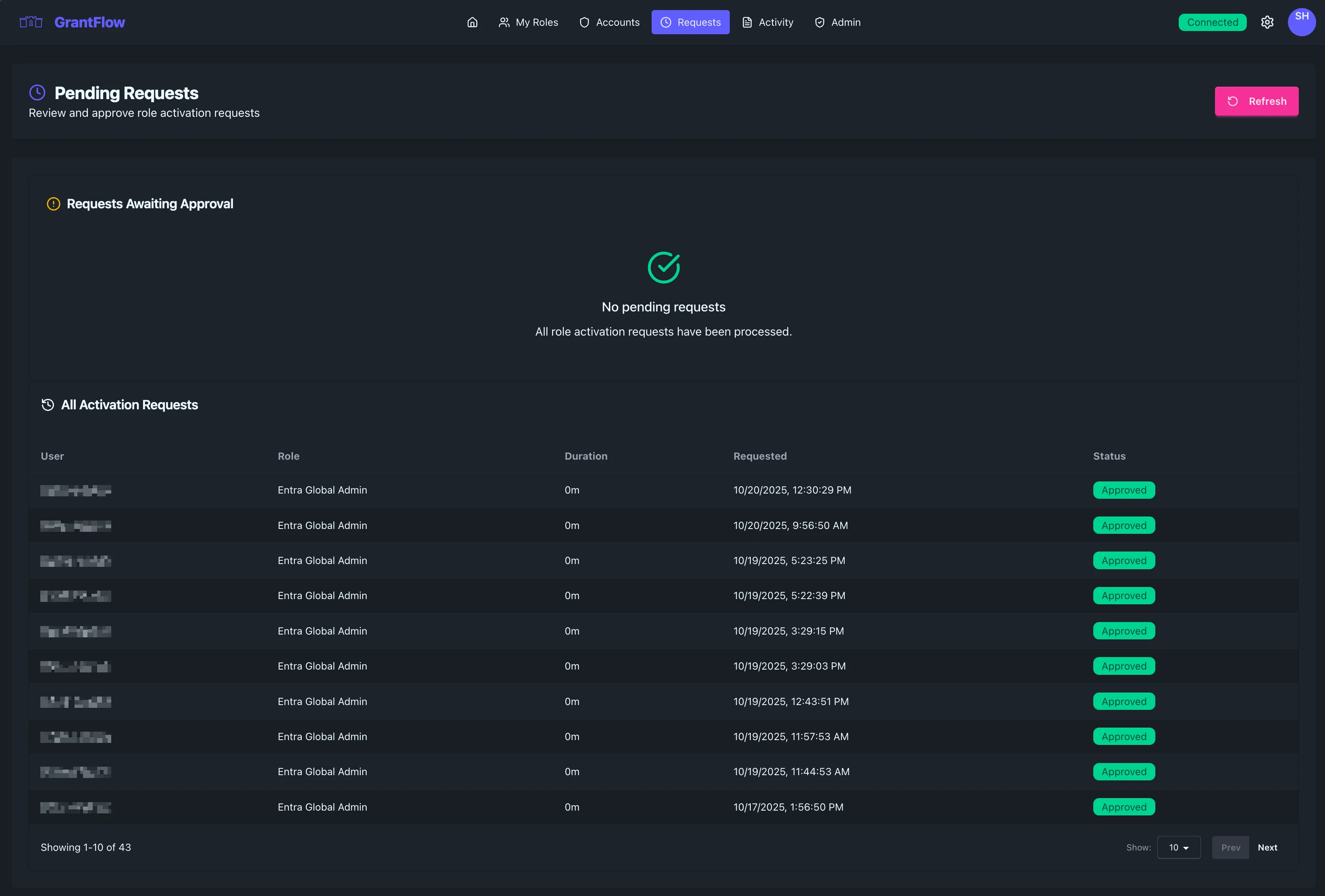
The page is split into two areas. At the top, Requests awaiting approval highlights items that need action from you (only visible if you’re an approver). Below that, All activation requests provides a comprehensive history view so you can review past and current requests.
Requests awaiting approval
When you have approver permissions, this section lists pending requests assigned to you or your group. Each entry includes who requested access, the role and duration, and the justification they provided. Action buttons let you approve or deny directly.
Empty state
If there’s nothing to decide, the page confirms that there are currently no pending requests and you’re all caught up.
All activation requests table
The lower table shows all activation requests with the key details you need to understand state at a glance.
Table columns
Columns include the requester, the role, the requested duration, when it was submitted, and the current status. This mirrors the audit log and makes it easy to reconcile activity.
Request status
Statuses are straightforward: Pending while awaiting approvers; Approved after the required decisions; Active when provisioned; Denied when rejected; Cancelled if withdrawn by the requester; and Expired once the activation window ends.
Status badges
Color‑coded badges help you scan quickly—for example, Approved appears in green, Pending in yellow/orange, and Denied in red.
Pagination
For large datasets, the table is paginated for speed and clarity.
Display options
You can adjust how many rows to display and see an indicator showing where you are within the full result set.
Navigation
Use the Previous and Next controls to move between pages; data loads on demand to keep navigation quick.
Approving requests
If you’re an approver, start by opening a pending request to see full context.
Review process
Review the justification, verify the requested role and duration are appropriate, and consider your organization’s policies and any related change records.
Making a decision
To approve, select Approve, optionally add notes, and confirm; activation begins immediately after approval. To deny, select Deny, provide a clear reason (required), and confirm; the requester is notified with your message.
Multi‑approver policies
Some roles require more than one approver. The request banner indicates how many approvals are required and how many have been collected so far so you can gauge remaining steps.
Tracking your requests
Finding your requests
To focus on your own submissions, use search or filters (where available), look for your name in the User column, and sort by Requested to bring your latest items to the top.
Request lifecycle
Every request follows a simple lifecycle: Submitted, Pending, Approved, Active, and Expired (or Denied/Cancelled if not completed). The table reflects state changes as they occur.
Live updates
The page refreshes automatically so new requests, approval decisions, and expirations appear without manual reload.
Page actions
Refresh
Use Refresh in the top‑right to manually update request data if needed.
Best practices
For approvers
Respond promptly to pending requests. Verify that justifications align with policy and that the requested duration is appropriate. Document denial reasons clearly and consistently, and always apply least‑privilege principles.
For requesters
Help approvers move quickly by providing clear, specific justifications with ticket or incident references when applicable. Request the minimum necessary duration, check status before escalating, and withdraw requests that are no longer needed.
Troubleshooting
Cannot see pending approvals
If you don’t see any pending items, you may not be configured as an approver or all requests have already been processed. Check with your administrator if you believe you should see approvals.
Request stuck in Pending
When a request stays Pending longer than expected, verify whether all required approvers have responded, confirm notifications were received, and consider out‑of‑office status. If it’s urgent, contact the approver directly per your local process.
Approved request not active
If an approval doesn’t lead to activation, allow a short time for connector sync, check connector health in the Admin area, and review the Activity Log for errors. If the issue persists, contact an administrator.
Notifications
Approvers are notified about new and escalated requests, while requesters are notified about approvals, denials, activations, expirations, and cancellations. Delivery channels depend on your organization’s configuration (for example, email or Teams).
Audit trail
All approval decisions are captured in the audit trail, including who approved or denied, when they acted, and any notes. This provides accountability and supports compliance reviews.
FAQ
Can I reassign a request to another approver group? Follow your organization’s delegation process if supported; otherwise, contact an administrator.
What if I approved the wrong duration? Either deny with a note to resubmit with the correct duration, or ask the requester to end early and submit a new request.
Do requesters see my approval notes? They may, depending on configuration. Assume notes are visible and keep them professional and concise.