Activity Log
The Activity Log shows your own privileged access activities. It’s scoped to your account so you can review what you requested, what was approved or denied, when access started and ended, and related context for troubleshooting.
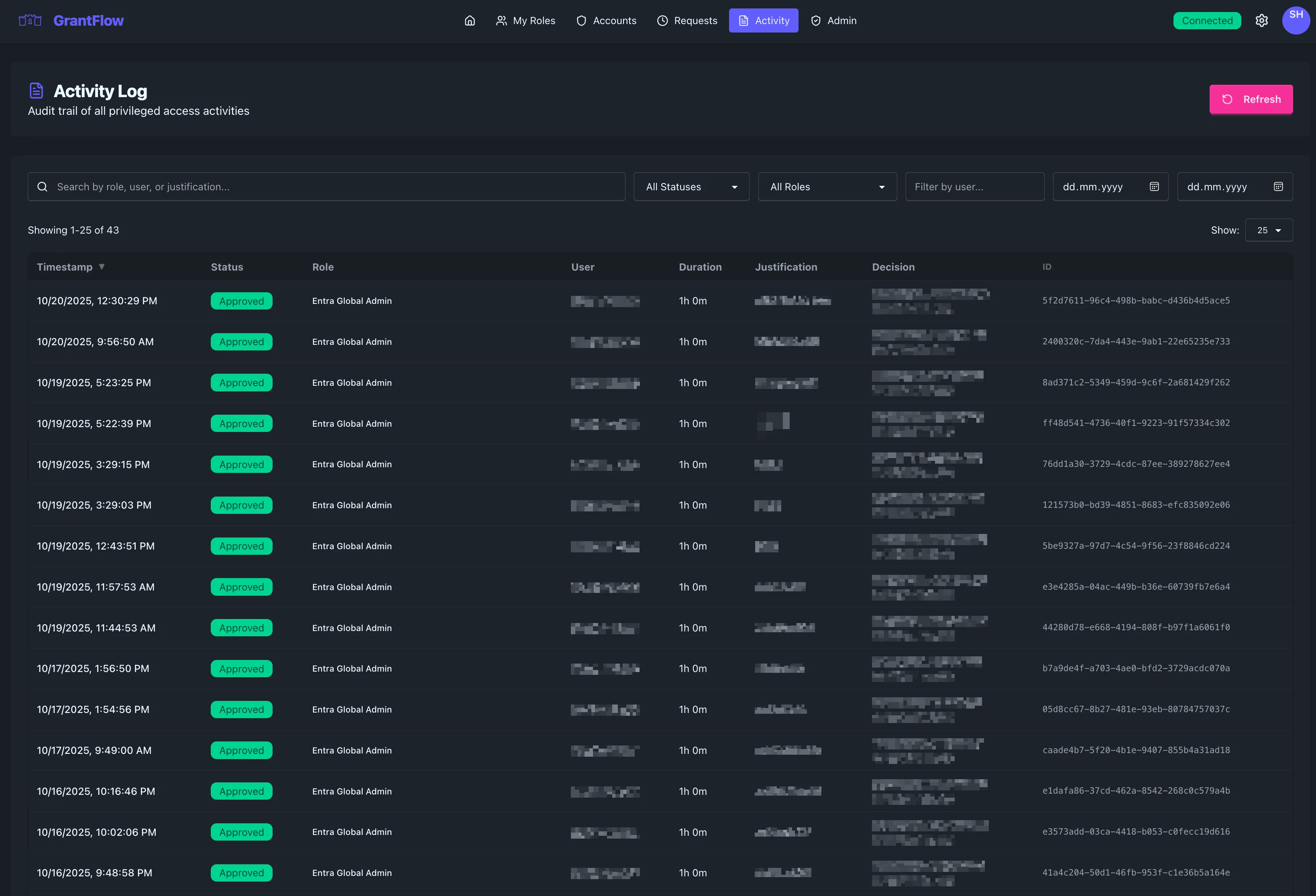
Overview
The Activity Log displays a detailed, searchable, and filterable table of your activation requests and their lifecycle—from submission and decision through activation and expiration. It’s designed to answer what you did, when, why, and which approver made the decision (if any).
Looking for organization‑wide audit data? The full Audit View is available under Admin → Audit & Compliance (Audit Events) and is restricted to administrators.
Table Columns
Each row presents the essential context for an activation event so you can scan quickly and drill into specifics when needed.
Core Fields
You’ll see when the event occurred, the request’s current status, the role in question, the requester, and the intended or actual duration. The justification field captures the stated business reason, and the decision field records approvals or denials with the approver’s identity and timestamp. A unique request ID appears for tracking and support.
Sortable Columns
Click the column headers to sort. Most users sort by Timestamp—toggling between newest‑first and oldest‑first—to review recent activity, but other columns may also support sorting depending on the data type.
Filtering and search
Powerful filtering and quick search help you cut through noise and focus on the records that matter.
Search bar
Use the text search to match across role names, user names, and justification text. Enter a term and press Enter to filter the grid immediately.
Status filter
Choose a status to narrow results to Pending, Approved, Denied, or Cancelled items—or leave it at All to see the full picture.
Role filter
Select a role to focus on a specific permission set. The dropdown lists all roles available in your tenant, and choosing one filters the table instantly.
User filter
Filter by user by typing a username or email. This is especially useful for audit reviews and incident follow‑ups.
Date range filter
Limit the results to a specific window using the From and To date pickers. Leaving either blank broadens the range to the start or end of the dataset.
Combining filters
Filters combine, so you can, for example, review only Approved requests for a particular role during a defined week, or focus on one user’s pending items for the current month.
Request details
Each row includes visual cues and supplemental fields that make it easy to understand state at a glance and dive deeper when needed.
Status information
Color‑coded badges label each request’s state—for example, Approved appears in green with a checkmark, Pending uses a yellow‑orange tone, and Denied is red—so you can assess the queue quickly.
Decision information
For approved and denied requests, the decision fields capture who made the decision and when, providing accountability and helping with follow‑up questions.
Duration format
Durations are formatted for readability (for example, “1h 0m” or “2h 30m”) so you can scan quickly and compare requests.
Unique request ID
Every request has a unique identifier (UUID). Use it in support tickets or change records; some implementations make the ID clickable to copy.
Pagination
Large result sets are paginated for speed and readability.
Pagination Controls
Use the First, Previous, Next, and Last controls to navigate through pages of results.
Page Number
An input shows the current page and lets you jump directly to a specific page number.
Rows Per Page
You can also adjust how many rows appear per page to balance context with performance.
Display Counter
A small counter indicates which rows are currently displayed and the total matching records after filters are applied.
Use cases
Common patterns include personal reviews (filter your recent activity and confirm justifications), export for change records or tickets, and troubleshooting (locate a specific request by timestamp, verify its approval status, and follow its lifecycle using the Request ID in tickets).
Best practices
Regular reviews
Establish a cadence: a quick daily scan for anomalies, a weekly pass over high‑privilege roles, monthly access reviews for your area, and quarterly exports for compliance reporting.
Privacy and security
The log purposely excludes secrets and captures only necessary metadata. Tenant isolation is strictly enforced and visibility is role‑based, so not everyone sees the same scope.
Don’t paste secrets into justifications or notes. Treat justifications as business context only.
Passwords are never logged and sensitive content should not be pasted into free‑text fields. Treat justifications as business context.
Retention and immutability
Audit records are immutable; if you need to correct something, use a compensating entry that references the original. Tenant administrators configure retention (typically 90–365 days), and records are always tenant‑scoped.
Practical filter recipes
A few handy examples: to review your own week of activity, filter by your user, a Monday‑to‑today date range, and Approved/Active statuses. To spot risk outside business hours, focus on high‑privilege roles and constrain the time range. For governance checks, look at Denied items with very short or generic justifications and export results for follow‑up.
Troubleshooting tips
If you can’t find a request, expand the date range and search by your email, then capture the Request ID for support. If a request shows Approved but access didn’t work, review the timeline for provisioning events and consult My Roles troubleshooting. When exports look incomplete, loosen filters or increase rows per page and try again.
FAQ
Who can see the Activity Log? Visibility depends on your role; auditors and administrators typically see a broader scope.
Can I delete or edit a log entry? No. Entries are immutable. Use compensating entries with references for corrections.
How long are logs kept? Retention is configured by your tenant admin—most deployments keep 90–365 days of history.