My Roles
The My Roles page is where you view and request activation for privileged roles assigned to you. This is where Just‑In‑Time (JIT) elevation happens.
New to activations? See Your First Activation for a quick walkthrough.
Overview
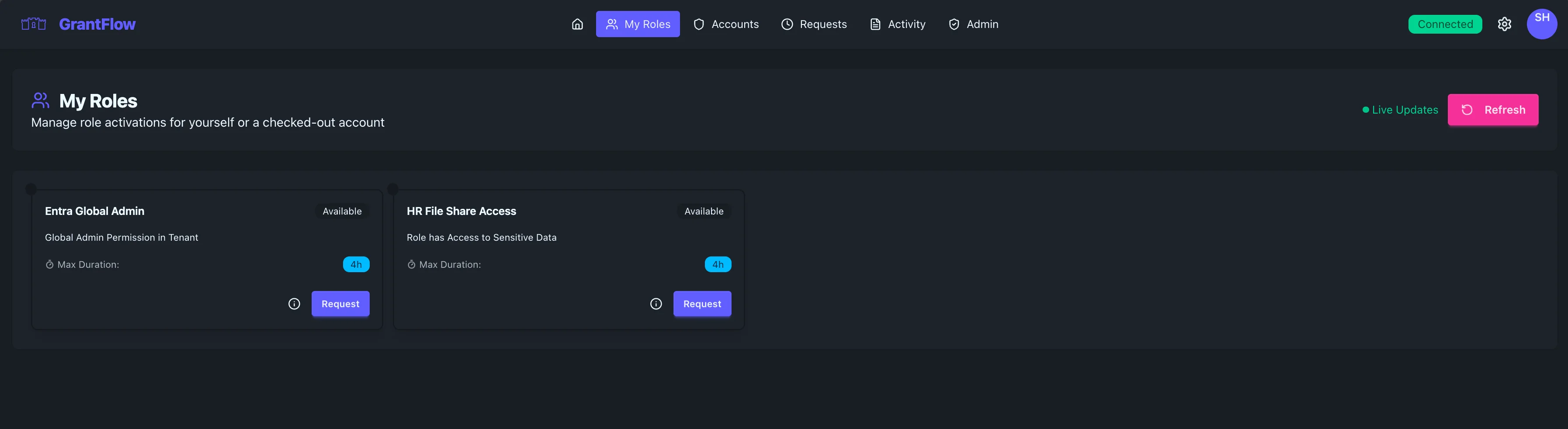
My Roles displays all privileged roles you’re eligible to activate as individual role cards with their details and actions. From here, you can understand what a role grants, preview its provisioning impact, and submit an activation request when you need elevated access.
Role Cards
Each card summarizes the essentials: the role’s name (for example, “Entra Global Admin”), its current availability, a short description of what the role grants, and the maximum activation duration. You can open a provisioning preview to see exactly which permissions and group memberships will be applied, or start an activation by selecting Request.
Requesting role activation
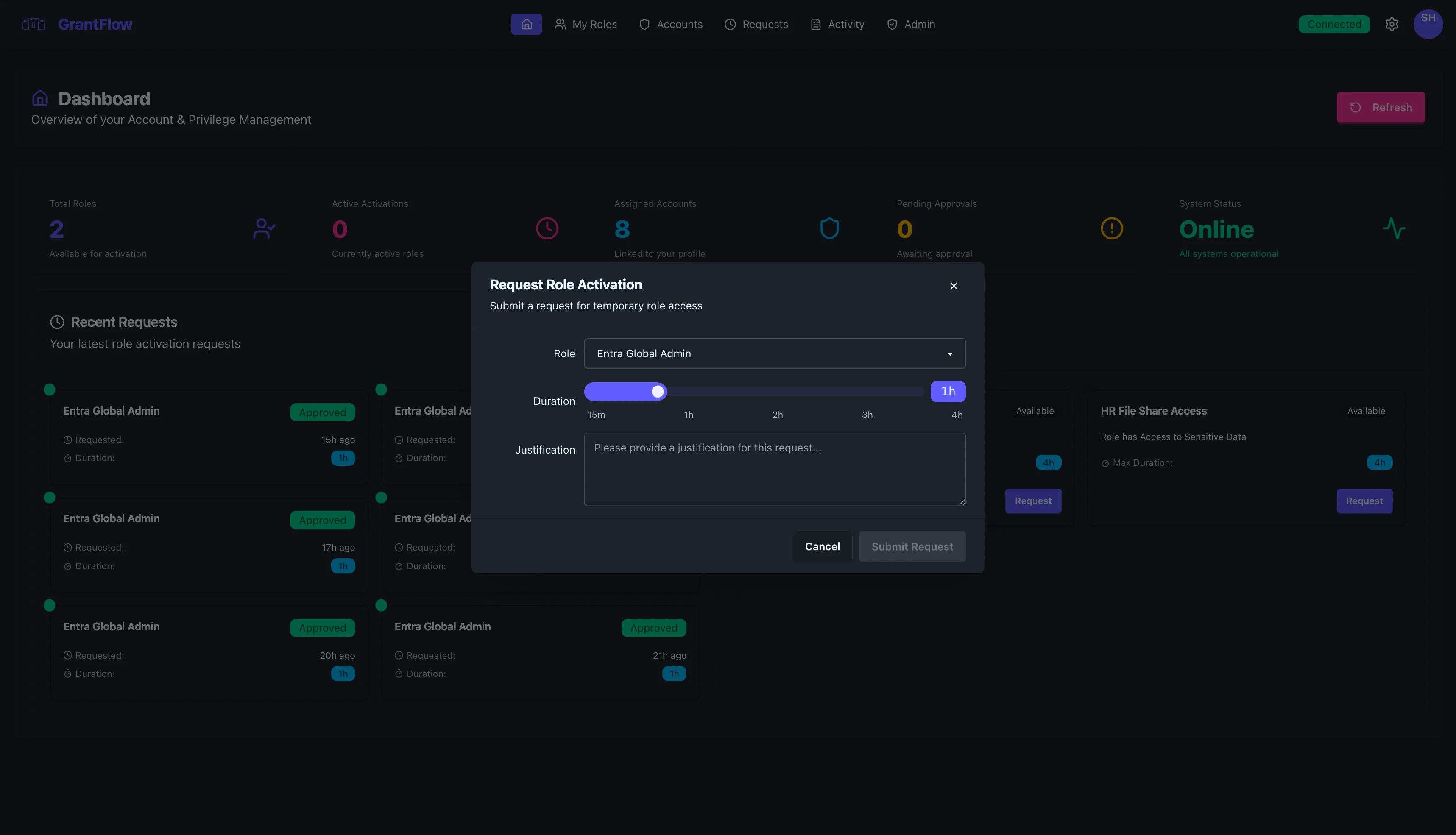
To request activation, choose the role you need and select Request to open the activation dialog.
Request dialog fields
The dialog is pre‑filled with the role you selected (you can switch if needed). Choose a duration that fits the task; policies typically allow anywhere from 15 minutes up to a few hours, and the slider includes helpful markers for common intervals. If your organization uses scoped admin accounts, you can activate the role either for yourself or for a checked‑out account. Finally, provide a concise, specific justification. This is required, will be part of the audit trail, and helps approvers make fast, informed decisions.
Submitting the request
Once the fields are complete, select Submit Request. If the role is auto‑approved, activation begins immediately. Otherwise, your request routes to the designated approver(s) and you can track progress on the Requests page.
Canceling a request
If you change your mind, close the dialog or cancel before submitting—no changes will be recorded.
Provisioning preview
Before requesting activation, select View provisioning details on a role card to see exactly what access will be granted. This preview lists each assignment with its type, name, connector, and identifiers so you know what will change.
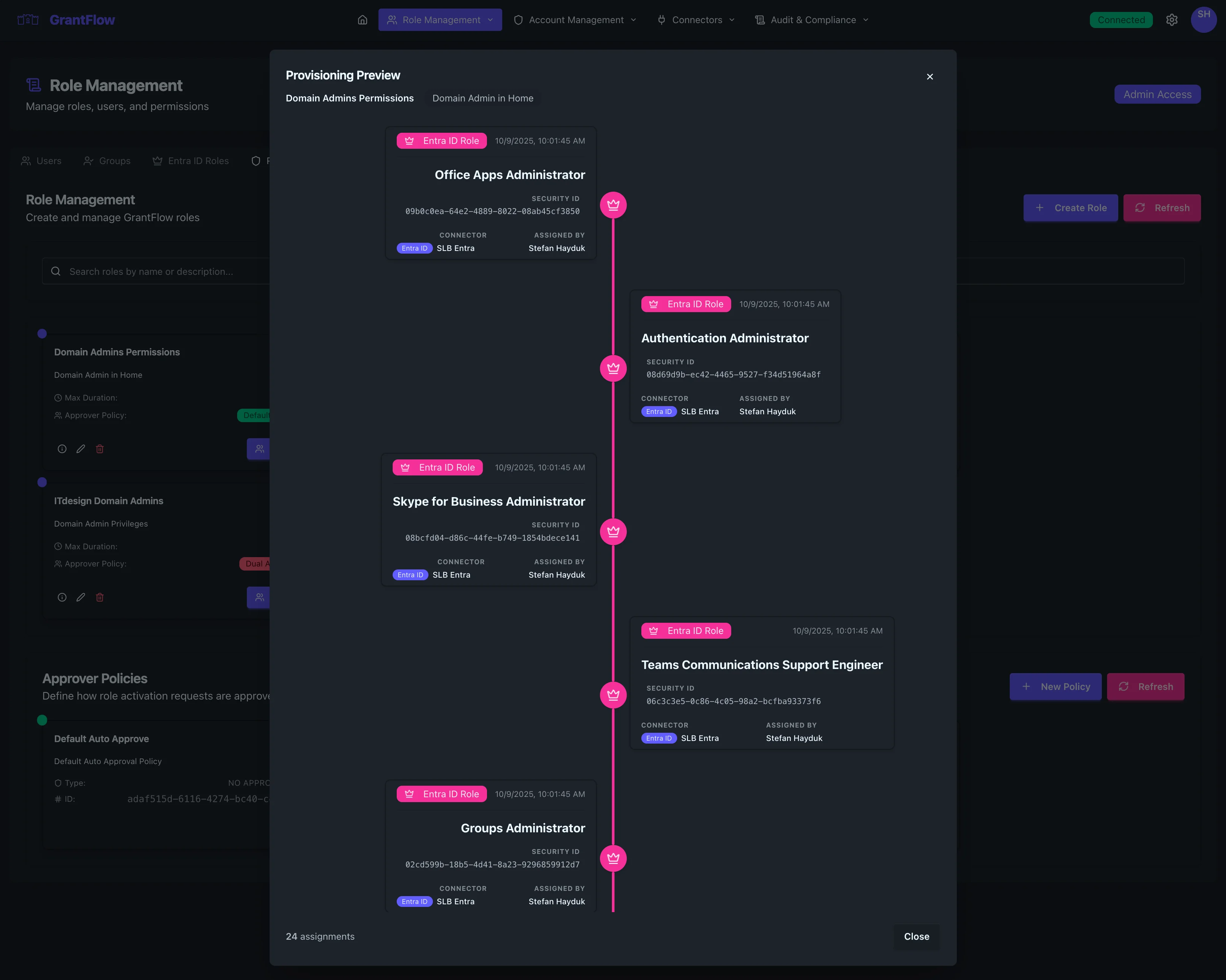
Each entry shows the assignment type (for example, Entra ID role or AD group), the specific role or group name, and when it was created. Security identifiers (GUIDs for Entra roles or SIDs for AD groups) provide an exact reference. You’ll also see which connector applies the change—such as “Entra ID” or “Active Directory” with the specific instance—and who configured the assignment. A count at the bottom summarizes how many assignments will take effect so you can gauge scope at a glance. Reviewing this preview improves accuracy, supports least‑privilege decision‑making, and provides a convenient reference if you need to troubleshoot access later.
Two quick examples: when investigating a user issue, you might open the preview for “Entra Global Admin” to confirm the necessary readers (Directory, Security, Usage Reports) are included for your task. During an incident, checking the preview for a “Production Database Admin” role helps you verify the correct AD groups and environments are targeted so you don’t request the wrong access under pressure.
As a habit, review the provisioning details—especially for roles you haven’t used before—verify connector instances match the intended environment, sanity‑check the assignment count, and consider capturing a screenshot for change documentation when working with high‑risk roles.
Live updates
My Roles refreshes automatically to reflect eligibility and availability changes and to keep active activation information up to date. A “Live Updates” indicator in the header confirms that real‑time sync is working.
Page actions
Refresh
Use Refresh in the top‑right to manually reload the list if you suspect your view is out of date.
Role status
Roles move through a few clear states. Available roles can be activated immediately; Active roles are currently elevated for you; Pending indicates a request awaiting approval; Expired means the activation has ended; and Denied appears when an approver rejects a request.
Best practices
When to request access
Request elevation only when you truly need it, choose the shortest duration that allows you to complete your task, and provide a clear, specific justification that references a ticket or change when applicable.
Duration guidelines
Favor shorter durations and extend only if your policy allows and the task requires more time. Longer windows can trigger additional scrutiny or approvals.
Writing good justifications
Strong justifications are specific and outcome‑oriented—for example, “Deploy emergency security patch to production servers,” “Investigate customer‑reported authentication issue #12345,” or “Quarterly access review and cleanup of inactive accounts.” Vague entries like “Need access,” “Testing,” or “Admin work” slow down approvals and may be rejected.
Security considerations
All role activations are logged, and approvers see your justification. Misuse of privileges can result in policy violations—always follow your organization’s security standards for elevated access.
Troubleshooting
"Submit Request" button disabled
The button stays disabled until all required fields are complete: choose the role, pick a duration, and provide a non‑empty justification.
Role not available
If a role shows as unavailable, it might already be active for you, the related account may be checked out, or a temporary policy restriction may be in effect. If the status looks unexpected, ask your administrator to review it.
Request takes long to process
If processing takes longer than expected, check the Requests page for approval status. After approval, Entra ID role propagation typically takes sub 5 seconds. For on‑prem AD group updates via the agent, allow up to 1–2 minutes.
If you intend to activate a role for a scoped account, check out the account first, then choose it in the “Acting as” dropdown.
FAQ
Can I extend an active session? If the policy allows, you can request an extension before time runs out—some organizations require approval for extensions.
Can I activate multiple roles at once? Yes, if policy permits. Submit a separate request for each role you need.
Do approvers see my justification? Yes. Provide clear business context and include ticket/change references when relevant.
Where do I confirm what a role grants? Open View provisioning details on the role card to see the exact permissions and groups.