Connector Jobs
The Connector Jobs page provides administrators with comprehensive monitoring and troubleshooting capabilities for all control plane jobs executed across identity provider connectors.
Overview
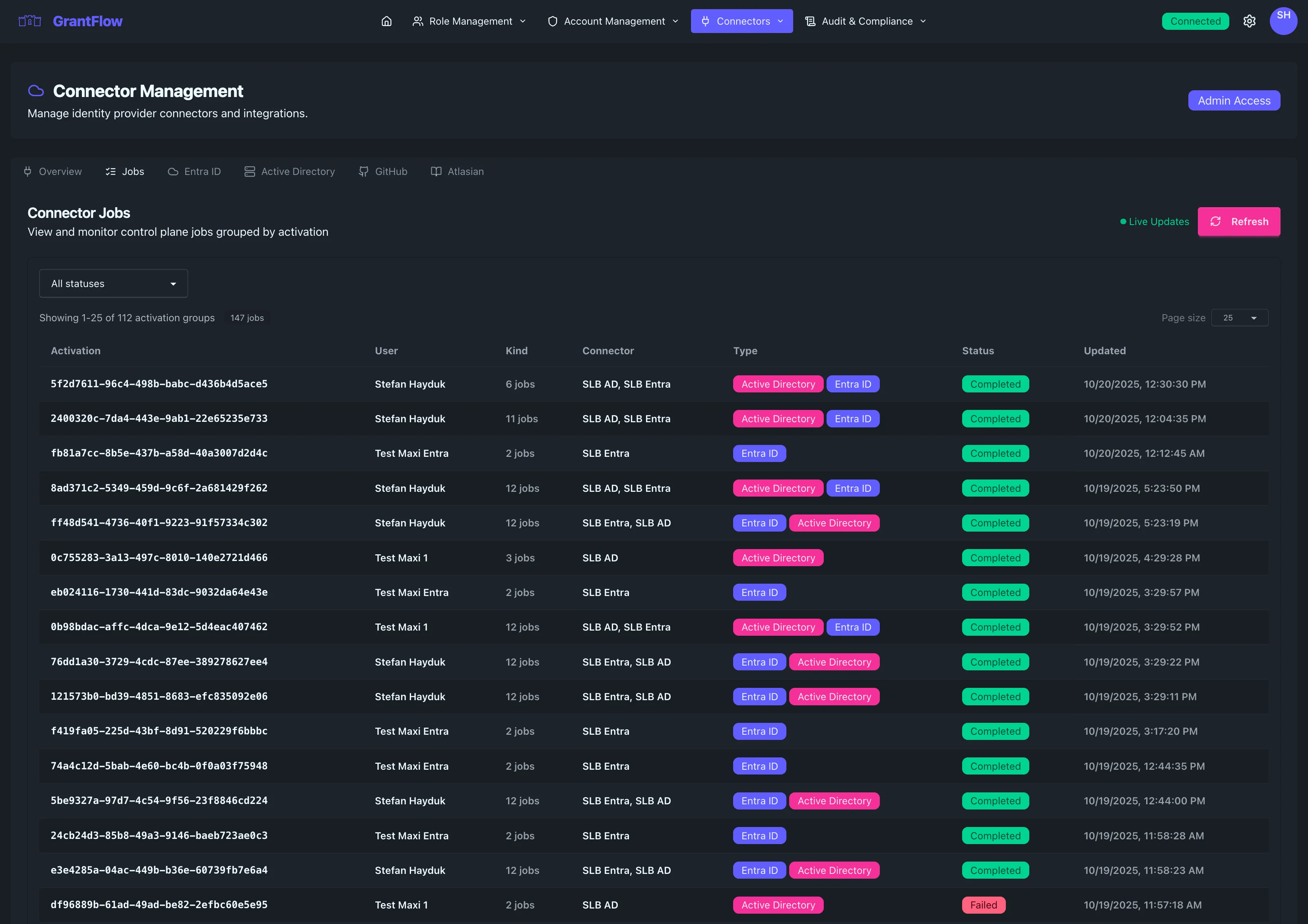
This page provides a centralized view of all jobs the control plane executes to provision or revoke access across identity providers like Entra ID and Active Directory. Jobs are grouped by activation request, so you can follow the full provisioning lifecycle for each role activation from start to finish.
Accessing Connector Jobs
Navigate to Admin, select Connectors, and open the Jobs tab.
Page Layout
Header Information
The header shows the page title (Connector Jobs), a short description noting that jobs are grouped by activation, and an admin access badge to indicate this is an administrative feature.
Control Bar
The control bar provides filtering and display options:
Status Filter
Filter jobs by their current status to focus on what matters. You can view everything at once or narrow to pending, running, completed, failed, or canceled jobs.
Summary Information
Summary counters indicate how many activation groups are displayed on the current page and the total number of jobs across all groups, for example “Showing 1–25 of 110 activation groups” and “135 jobs.”
Page Size Control
Adjust how many activation groups appear per page — typically 10, 25 (default), or 50 — depending on how much detail you want to see.
Refresh Button
Use the Refresh button in the top‑right to reload the list with the latest data from the control plane.
Jobs Table
The main table displays activation groups with the following columns:
Activation
Each row is keyed by the activation request ID (UUID). Click any row to open its detailed execution history.
User
Shows who requested the activation (for example, “Stefan Hayduk” or “Test Maxi Entra”).
Kind
For single‑job activations, this column shows the specific job type (such as EntraID Enable, EntraID AssignRole, AD AddToGroup, or AD RemoveFromGroup). For multi‑job activations, it summarizes with a count like “12 jobs” or “3 jobs.”
Connector
Lists the connector instances that handled the jobs, comma‑separated for multi‑connector activations (for example, “SLB Entra, SLB AD”).
Type
Shows which connector types were involved, such as Entra ID (Microsoft Azure Entra ID) or on‑premises Active Directory. When an activation spans providers, multiple types are displayed.
Status
Indicates the overall status across all jobs in the activation, such as Completed, Failed, Running, Pending, or Canceled, with badges that help you scan quickly.
Updated
Shows when a job in the activation was most recently updated, displayed in local time (for example, “10/19/2025, 7:10:01 PM”).
Job Execution History
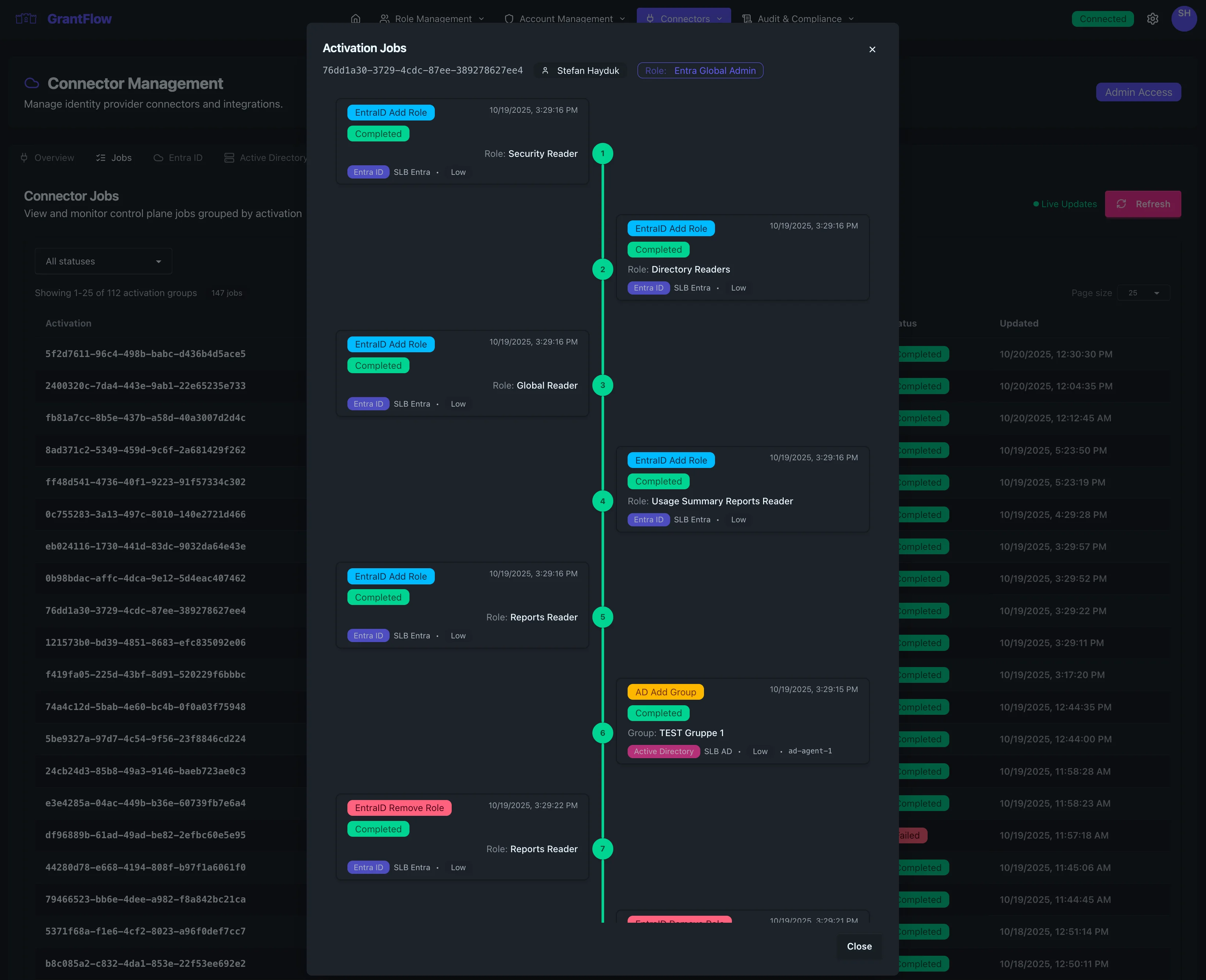
Clicking on any activation row opens the Activation Jobs interface, which displays detailed information about all jobs executed for that specific activation.
Header
- Title: "Activation Jobs"
- Activation ID: The UUID of the activation request
- User: Display name of the user who requested the activation
- Close Button (✕): Click to close the interface
Job Details
Each job in the activation appears as a concise card with key information to help you triage and investigate.
Job Number
Jobs are numbered sequentially to show execution order (e.g., 1, 2, 3).
Job Type
Describes the operation performed, such as EntraID Enable or AssignRole, AD AddToGroup or RemoveFromGroup, and Account.Enable or Account.Disable when account state changes are part of the activation.
Job Execution Status
Displays the job’s current state (Completed, Failed, Running, Pending, or Canceled) so you can see where an activation is progressing or stuck.
Timestamp
Shows when the job was last updated in your local time zone.
Connector Type
Identifies the provider type that executed the job, for example Entra ID or Active Directory.
Connector Instance
Names the connector instance that executed (or will execute) the job, such as “SLB Entra” or “SLB AD.”
Priority Indicator
Indicates priority to help triage — Low (standard), Normal, High (urgent), or Critical (emergency access).
Modal Actions
Use the Close button to dismiss the modal and return to the jobs list.
Pagination Controls
Use the pagination controls at the bottom to navigate between pages. You can jump to the first or last page, move to the previous or next page, and see where you are (for example, “Page 1 of 5”). Buttons are disabled when navigation isn’t applicable.
Use Cases
Monitoring Active Provisioning
To monitor active provisioning, set the status filter to Running, note which connectors are processing work, and watch for jobs that stay in the Running state longer than expected.
Troubleshooting Failed Activations
To investigate failures, filter by Failed, open the activation, identify which job failed, note the connector and operation involved, and use those clues to diagnose connector health or permission problems.
Auditing Recent Changes
For quick audits, use the default All statuses filter, sort by Updated (most recent first), and open individual activations to see the permissions that were granted.
Verifying Multi-Connector Operations
When activations span multiple identity providers, look for rows listing more than one connector (such as “SLB Entra, SLB AD”), open the execution history, and verify that all provider‑specific jobs finished successfully and granted the expected access.
Capacity Planning
Use the job totals and jobs‑per‑activation patterns to plan capacity. Identify peak periods and decide whether to add agents or scale connector capacity based on observed load.
Status Indicators
Completed (Green)
All jobs in the activation group finished successfully. The requested access is fully provisioned across all identity providers.
Failed (Red)
One or more jobs in the activation failed. Common causes include connector connectivity problems, insufficient service account permissions, invalid group or role identifiers, or an offline AD agent. Action required: open job details and investigate the failure.
Running (Blue)
Jobs are currently being executed. As a guide, Entra ID operations often complete within seconds, while AD jobs may take a bit longer depending on agent response time. If jobs stay in the Running state for more than a couple of minutes, check connector health.
Pending (Yellow)
Jobs are queued and waiting to be executed. This can happen when agents are busy, during high load, or when jobs are scheduled for the future.
Scheduled (Purple)
Jobs have been scheduled for future execution. Scheduled jobs are typically deactivation or revocation tasks that will run when a role activation expires. Unlike other job states, scheduled jobs cannot be canceled through the normal cancellation flow because they represent committed future actions tied to time-bound access grants.
If you need to prevent a scheduled job from executing, you can use the Force End action on the parent activation. This immediately terminates the activation and triggers the scheduled cleanup jobs to run now rather than at their scheduled time.
Canceled (Gray)
Jobs were canceled before completion. Cancellations can be initiated by an administrator, by the requester withdrawing the access request, or automatically due to policy violations. Note that scheduled jobs cannot be canceled directly—use Force End on the activation instead.
Best Practices
Regular Monitoring
Check the Connector Jobs page regularly to ensure activations are completing successfully, set up external monitoring to alert on high failure rates, and keep an eye on job completion times to spot performance issues early.
Investigation Workflow
When investigating, start broad with filters to find problematic activation groups, then drill down into the specific activation’s job details. Cross‑reference connector health and document patterns — for example, failures that cluster around certain connectors or job types.
Performance Optimization
Monitor how many jobs typically run per activation. If groups consistently have a high number of jobs (for example, 10 or more), consider optimizing role definitions or assignments. Review execution times to identify slow connectors.
Retention and Cleanup
Job history is retained for audit and compliance. Older entries are archived automatically according to retention policies. Use filters to focus on recent jobs during day‑to‑day operations.
Troubleshooting
Jobs Stuck in "Pending"
Jobs can remain in Pending for extended periods if an AD agent is offline or not polling, or if the job queue has grown beyond agent capacity. Navigate to Admin → Connectors → Active Directory to check agent status, verify connectivity, and restart the agent if needed.
Jobs Failing Consistently
When multiple jobs fail with the same pattern, it often points to missing service account permissions, a network connectivity problem between the control plane and the identity provider, or references to invalid or deleted groups/roles. Review job details to spot patterns, verify connector configuration and permissions, and test connectivity using the health check.
Activation Groups Not Appearing
If expected activations are missing from the list, first check that your status filter isn’t excluding them and that you’re on the right page. Click Refresh to reload data, and verify on the Requests page that the activations were successfully submitted.
Security Considerations
Access to Connector Jobs requires administrative privileges. All job execution details are recorded in the audit trail, and job data may include sensitive information about permission assignments. Ensure only authorized administrators have access, and use job history as part of your forensic investigations when needed.