Creating an AD Connector
This guide walks you through creating a new Active Directory (AD) connector in GrantFlow. AD connectors enable on-premises directory integration through secure, outbound-only agents that communicate with the GrantFlow control plane (via the Agents service over HTTPS).
Prerequisites
Before creating an Active Directory connector, ensure you have:
- Active Directory Domain - A functioning on-premises Active Directory domain
- Agent Installation - At least one GrantFlow agent installed and enrolled (see Active Directory Agents)
- Agent Connectivity - The agent must have outbound connectivity to the Agents service at
agents.grantflow.cloudover HTTPS (TCP/443). For firewall rules, endpoints, and proxy guidance, see AD Connector – Network. - Domain Credentials - A service account with appropriate permissions for the operations you plan to perform
- Network Access - The agent must be able to reach your domain controllers via LDAP (port 389) or LDAPS (port 636). For recommended ports and TLS requirements, see Agent to Domain Controller Communication.
Install and enroll your agent before creating the connector. The agent must appear in the "Active Directory Agents" section with an "Online" status before it can be assigned to a connector.
Accessing the Connector Management Page
Navigate to the connector management interface:
- Click Admin in the main navigation menu
- Select Connectors from the dropdown menu
- Choose Active Directory from the connector type tabs
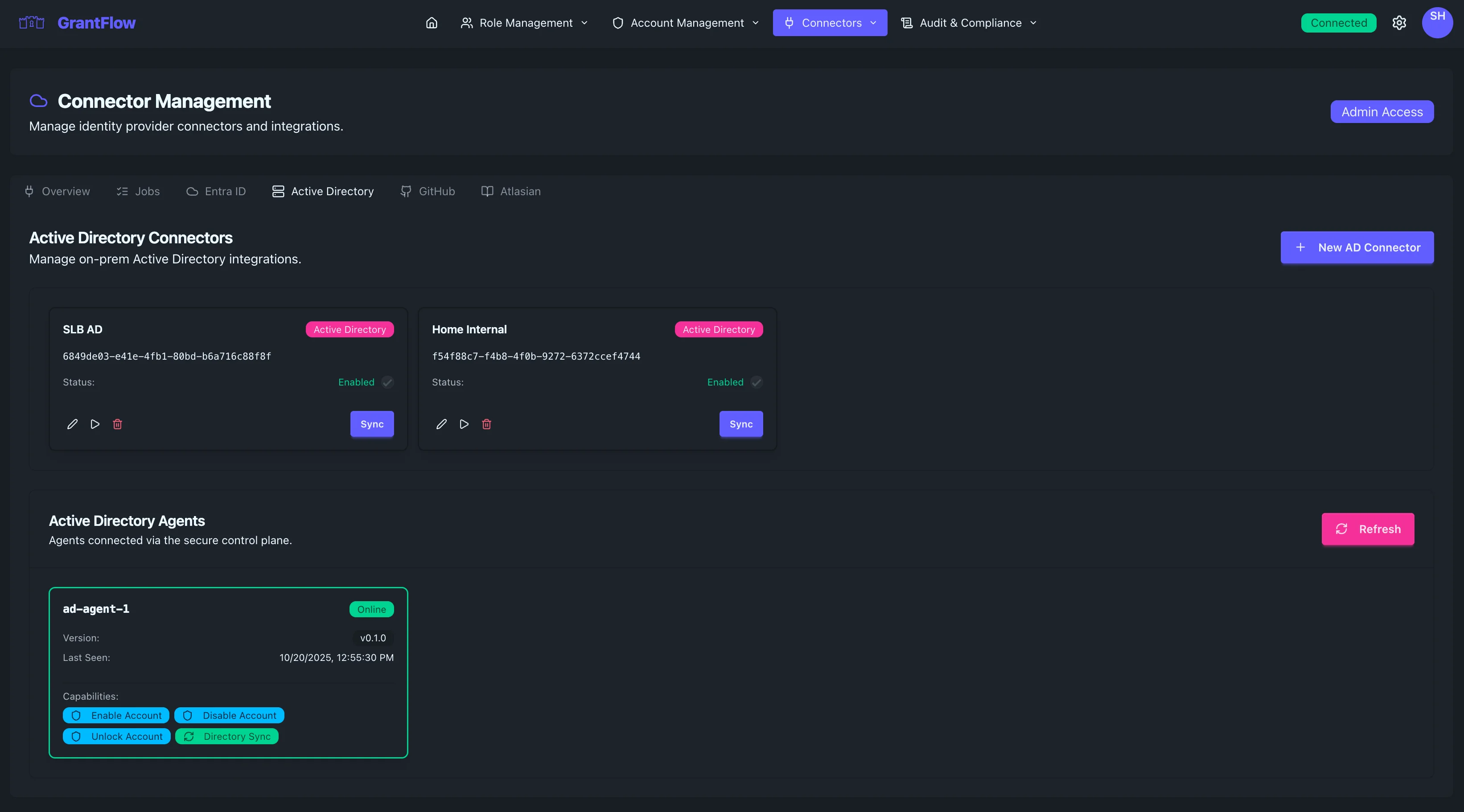
You'll see existing AD connectors, connected agents, and a button to create a new connector.
Understanding Agent Architecture
Before creating a connector, understand how GrantFlow agents work:
- Outbound-Only Communication - Agents initiate connections to the control plane; no inbound firewall rules required
- mTLS Security - Agents authenticate using certificate-based identities signed by Azure Key Vault
- Job-Based Execution - The control plane queues jobs; agents poll for work and execute operations via the Agents service
- Capability-Based Assignment - Agents advertise their capabilities (enable/disable accounts, group management, etc.)
- Multiple Agent Support - You can assign multiple agents to a connector for high availability
Creating a New Active Directory Connector
Click the New AD Connector button to open the connector creation modal.
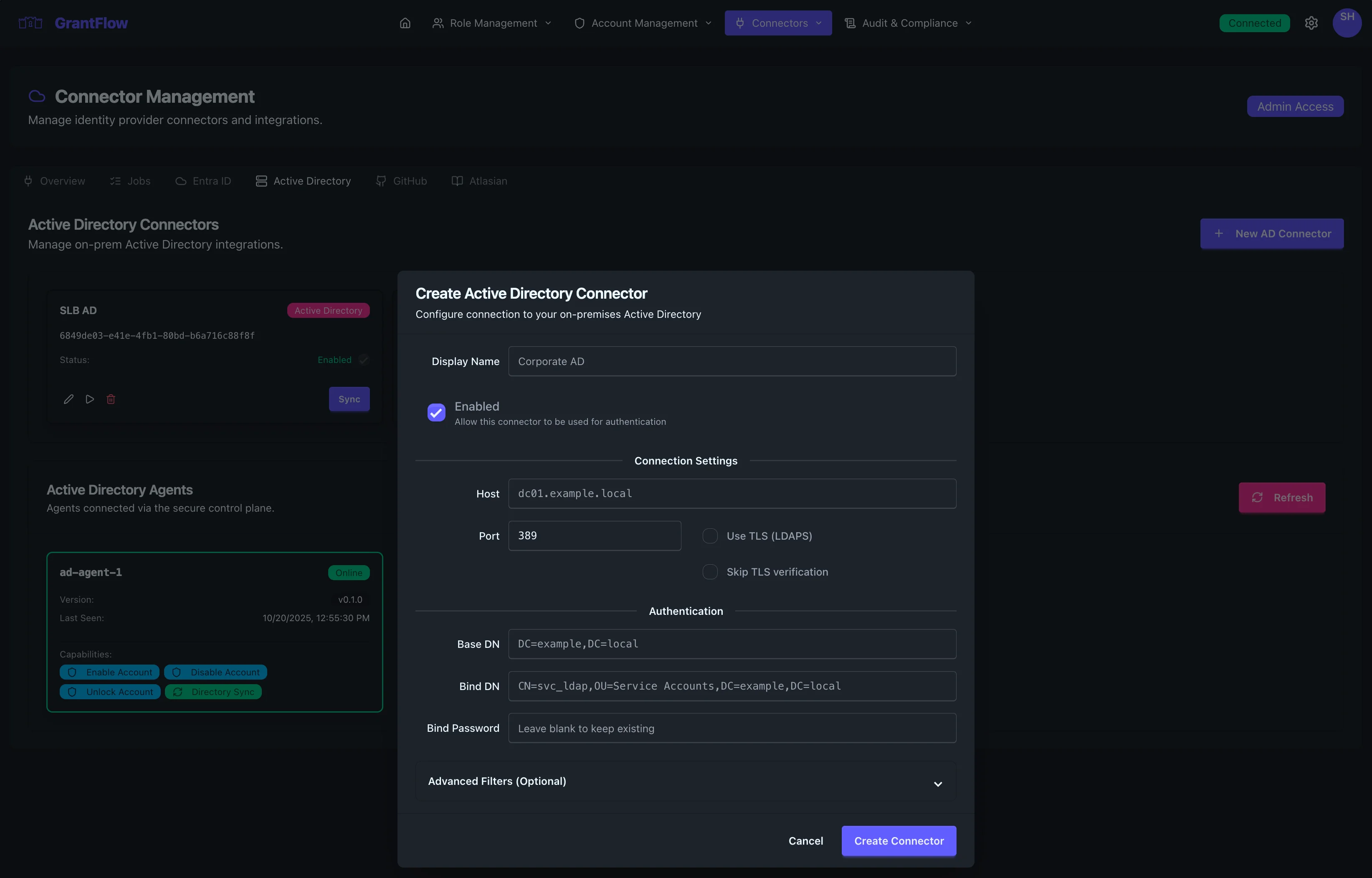
The modal displays all configuration fields needed to establish your on-premises AD connection.
Basic Configuration
Display Name
Enter a descriptive name that identifies this connector within your organization. This name appears throughout the GrantFlow interface.
- Example: "Corporate AD", "North America Domain", or "EMEA Active Directory"
- Best Practice: Use names that clearly identify the domain or geographical scope
Enabled Toggle
The enabled checkbox controls whether this connector is active and available for directory operations.
- Checked (default): The connector is active and can process requests
- Unchecked: The connector is disabled; no new operations will be dispatched
Disable a connector during maintenance windows or when troubleshooting agent connectivity. In-flight operations complete, but no new work is assigned.
Connection Settings
This section defines how the agent connects to your Active Directory domain controllers.
Host
The hostname or IP address of your Active Directory domain controller. The agent uses this to establish LDAP/LDAPS connections.
- Format: Hostname or IP address
- Examples:
dc01.example.local(hostname)10.0.1.10(IP address)
- Best Practice: Use a load-balanced FQDN or virtual IP for high availability
While you specify a single host, most Active Directory environments have multiple domain controllers. Consider using a DNS alias that resolves to multiple DCs or implementing load balancing for resilience.
Port
The port number for LDAP or LDAPS communication with your domain controller.
- Default:
389(standard LDAP) - LDAPS:
636(LDAP over TLS) - Global Catalog:
3268(LDAP) or3269(LDAPS)
If using LDAPS (recommended), change the port to 636 and enable the "Use TLS (LDAPS)" checkbox below.
Use TLS (LDAPS)
Enable this checkbox to use LDAP over TLS for encrypted communication with your domain controller.
- Recommended: Always enable for production environments
- Certificate Requirements: The domain controller must have a valid TLS certificate
- Port: Remember to set the port to
636when enabling LDAPS
Use LDAPS in production to protect credentials and directory data in transit. For rationale and firewall details, see AD Connector – Network.
Skip TLS Verification
When enabled, the agent skips verification of the domain controller's TLS certificate. This should only be used in development or testing environments.
- Default: Unchecked (verify certificates)
- When to Enable: Self-signed certificates or testing environments only
- Production: Never enable in production; always use valid certificates
Skipping TLS verification exposes you to man-in-the-middle attacks. Only use this option in isolated development environments with non-production data.
Authentication
These fields configure how the agent authenticates to Active Directory to perform operations.
Base DN
The Distinguished Name (DN) that serves as the starting point for all LDAP searches. This typically represents your domain root.
- Format:
DC=example,DC=local - Example:
DC=contoso,DC=com - How to Find: Your domain name converted to DC components
Convert your domain name to Base DN format:
- Domain:
contoso.com→ Base DN:DC=contoso,DC=com - Domain:
sales.emea.corp.local→ Base DN:DC=sales,DC=emea,DC=corp,DC=local
Bind DN
The Distinguished Name of the service account the agent uses to authenticate to Active Directory. This account must have appropriate permissions for the operations you plan to perform.
- Format:
CN=svc_ldap,OU=Service Accounts,DC=example,DC=local - Example:
CN=GrantFlow Service,OU=Service Accounts,DC=contoso,DC=com - Requirements: The account specified must exist in your Active Directory
Grant the minimum permissions required for your use cases. See the detailed guidance in AD Connector – Service Account Permissions.
Bind Password
The password for the service account specified in Bind DN. This credential is encrypted at rest and used by the agent to authenticate LDAP connections.
- Security: Masked in the UI after entry; stored encrypted
- Best Practice: Use a dedicated service account with a strong, unique password
- Rotation: Plan for regular password rotation; update the connector when changed
- Never use a personal or administrative account for the Bind DN
- Implement password rotation policies for service accounts
- Monitor for authentication failures that may indicate credential issues
- Consider using a Group Managed Service Account (gMSA) if your environment supports it
Advanced Filters (Optional)
Expand this section to configure LDAP filters that limit which users and groups are synchronized or visible to GrantFlow.
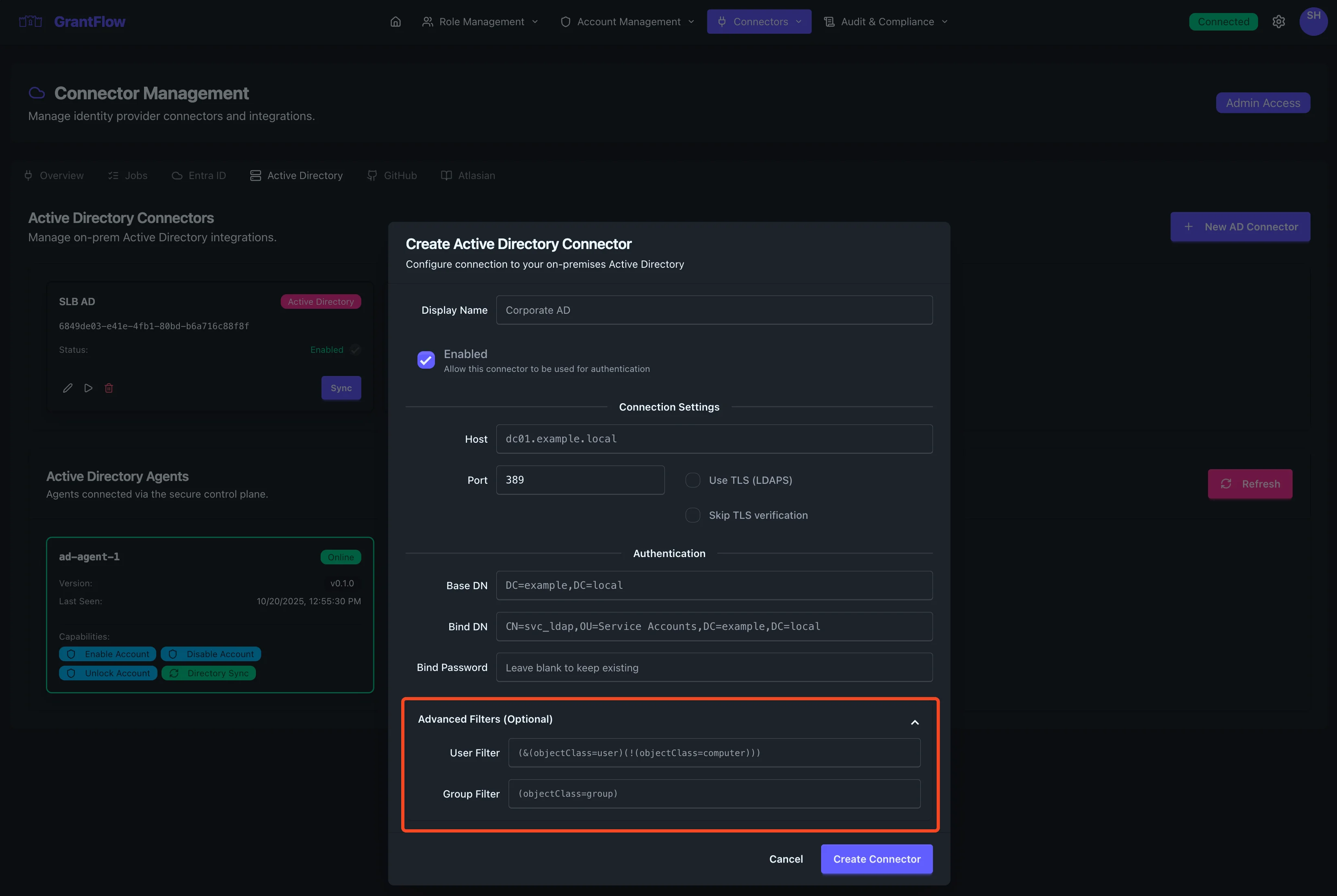
User Filter
An LDAP filter that restricts which user objects are synchronized from Active Directory. If left blank, all user objects under the Base DN are included.
- Format: Standard LDAP filter syntax
- Default:
(objectClass=user)(implied if blank) - Examples:
(&(objectClass=user)(objectCategory=person))- Users only (exclude computers)(&(objectClass=user)(!(userAccountControl:1.2.840.113556.1.4.803:=2)))- Enabled users only(&(objectClass=user)(memberOf=CN=VPN Users,OU=Groups,DC=example,DC=local))- Users in specific group
Test your LDAP filters using tools like ldapsearch or Active Directory Users and Computers before applying them to the connector to ensure they return the expected results.
Group Filter
An LDAP filter that restricts which group objects are synchronized from Active Directory. If left blank, all group objects under the Base DN are included.
- Format: Standard LDAP filter syntax
- Default:
(objectClass=group)(implied if blank) - Examples:
(objectClass=group)- All groups(&(objectClass=group)(!(groupType:1.2.840.113556.1.4.803:=1)))- Security groups only(ou=Application Groups)- Groups in specific OU
- Exclude System Groups: Filter out built-in groups like Domain Users, Domain Admins
- Specific OUs: Limit sync to specific organizational units
- Enabled Accounts Only: Prevent disabled accounts from appearing in GrantFlow
- Security Groups Only: Exclude distribution lists if you only manage security groups
Saving the Connector
After configuring all settings:
- Review all connection settings for accuracy
- Verify the Bind DN and password are correct
- Confirm the host and port match your domain controller configuration
- Click Create Connector to save
The system validates all fields before saving. If validation fails, error messages appear next to the relevant fields.
Field Validation Requirements
GrantFlow validates connector fields to ensure security and proper operation:
| Field | Requirements | Validation |
|---|---|---|
| Display Name | 1-100 characters, no control characters | Required, sanitized |
| Host | Valid hostname or IP address | DNS/IP format check |
| Port | 1-65535 | Numeric range |
| Base DN | Valid DN format (DC=x,DC=y) | DN syntax validation |
| Bind DN | Valid DN format | DN syntax validation |
| Bind Password | Non-empty | Required (stored in Key Vault) |
| User Filter | Valid LDAP filter syntax | LDAP filter parsing |
| Group Filter | Valid LDAP filter syntax | LDAP filter parsing |
Common Validation Errors
"Invalid DN format" - Distinguished Names must use the correct syntax with properly formatted components (CN=, OU=, DC=).
"Invalid LDAP filter" - LDAP filters must use valid syntax with balanced parentheses and valid attribute names.
"Host unreachable" - The agent cannot reach the specified host. Verify the hostname/IP and network connectivity.
"Authentication failed" - The Bind DN or password is incorrect, or the account lacks permissions to bind.
The system validates connectivity by testing the LDAP connection through the assigned agent. If successful, the connector appears with an "Enabled" status.
What Happens Next
Once created and enabled, the Active Directory connector:
- Tests Connectivity - Validates LDAP connection using the provided credentials
- Begins Synchronization - Starts initial sync of users and groups matching your filters
- Enables Operations - Allows GrantFlow roles to trigger AD operations via the agent
- Establishes Job Queue - Creates a work queue for account operations and group changes
- Monitors Agent Health - Tracks agent connectivity and job execution status
Assigning Agents
After creating the connector, ensure at least one agent is assigned:
- Navigate to the Active Directory Agents section on the same page
- Verify your agent shows "Online" status
- The agent automatically associates with the connector if it's the only AD connector
- For multiple connectors, you may need to explicitly assign agents
Agents can support multiple connectors in the same tenant. Configure agent priority and failover preferences if you have multiple agents for high availability.
Testing the Connector
Verify the connector is working correctly:
- Click the Test button on the connector card
- Review test results for successful LDAP connectivity
- Navigate to Admin → Account Management → Accounts
- Filter by this connector to see synchronized users
- Check that groups appear in the appropriate views
The first synchronization may take several minutes depending on directory size. Large domains with tens of thousands of users may take 15-30 minutes for initial sync.
Troubleshooting
Connection Test Fails
If the connection test fails, verify:
- Agent Status: Ensure the agent shows "Online" in the Active Directory Agents section
- Host and Port: Confirm the domain controller hostname/IP and port are correct
- Network Connectivity: Verify the agent server can reach the domain controller on the specified port
- Bind Credentials: Check that the Bind DN is formatted correctly and the password is valid
- TLS Configuration: If using LDAPS, ensure the domain controller has a valid certificate
Authentication Errors
If you encounter authentication failures:
- Bind DN Format: Verify the Distinguished Name is properly formatted (
CN=name,OU=ou,DC=domain,DC=com) - Account Status: Confirm the service account is enabled and not locked out
- Password Expiration: Check if the service account password has expired
- Permissions: Ensure the service account has at least read access to the Base DN
Users Not Syncing
If users aren't appearing after creation:
- Wait for Sync: Initial sync can take 5-30 minutes for large directories
- Check Filters: Review your User Filter to ensure it's not too restrictive
- Verify Base DN: Confirm the Base DN contains the user objects you expect
- Agent Logs: Check agent logs for sync errors or warnings
- Permissions: Ensure the service account can read user attributes
Agent Offline
If the agent shows as offline:
- Verify the agent service is running on the agent server
- Check agent logs for connectivity issues
- Confirm outbound connectivity to
agents.grantflow.cloudover HTTPS (TCP/443) - Validate the agent certificate hasn't expired
- Restart the agent service if necessary
Next Steps
After successfully creating your Active Directory connector:
- Configure Roles: Create GrantFlow roles that manage AD group memberships
- Define Account Policies: Set policies for account enable/disable operations
- Set Approval Workflows: Configure approvers for privileged AD group access
- Assign Eligibilities: Grant users eligibility to request AD group memberships
- Monitor Agent Health: Regularly check agent status and job execution metrics