Requests for Requesters
This guide focuses on how you submit, track, and manage your own activation requests. It complements the main Pending Requests & Approvals page with requester‑specific tips and edge cases.
Submitting a request
From My Roles, select Request on the role you need. Choose a duration that matches the task, decide whether you’re acting as yourself or a checked‑out account (if enabled), and write a clear justification with ticket or change references.
Request activation dialog
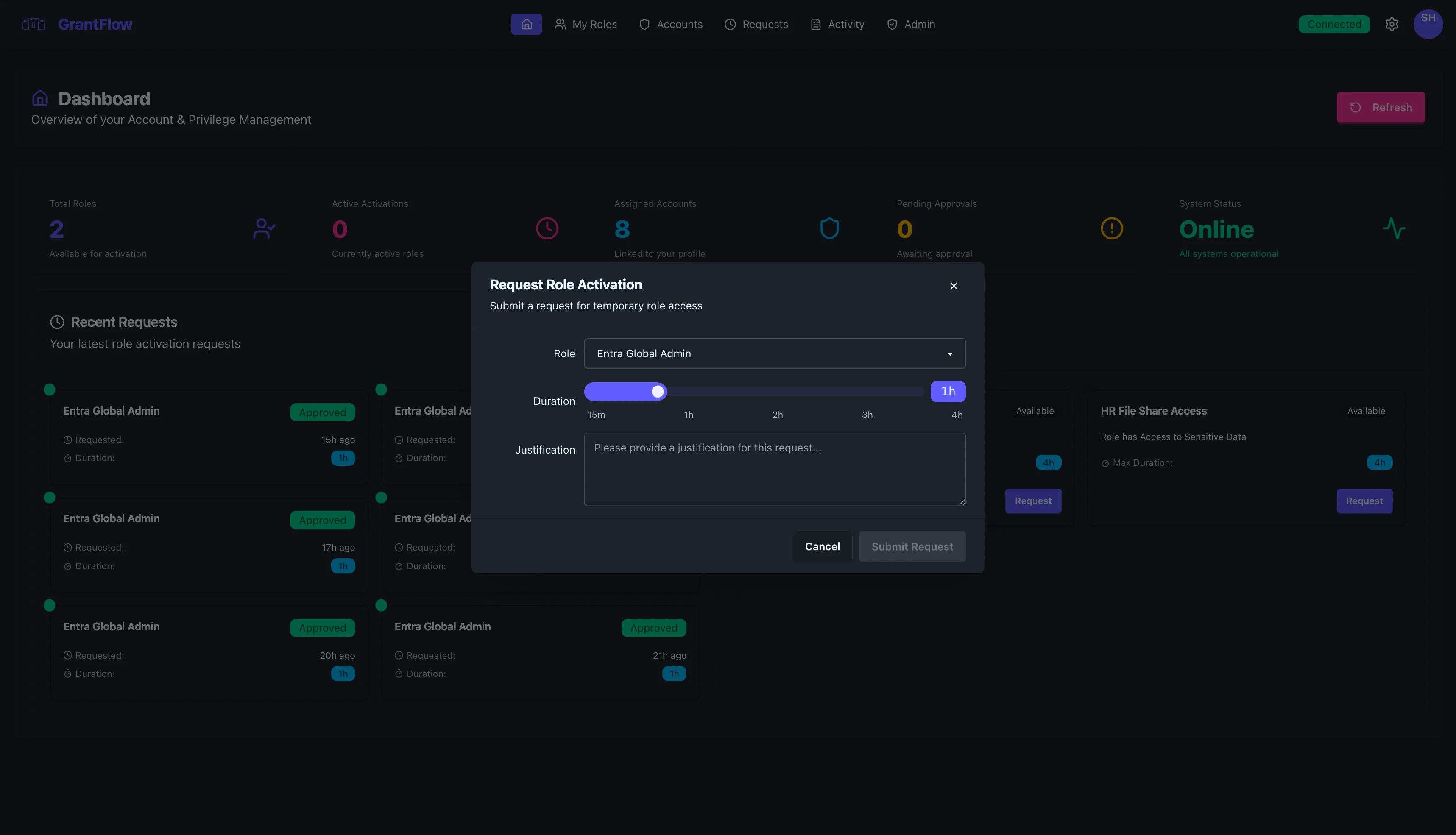
What makes a strong justification
- Be specific about the task and scope
- Include incident/change/ticket numbers
- Avoid generic phrases like “admin work” or “testing”
Tracking status
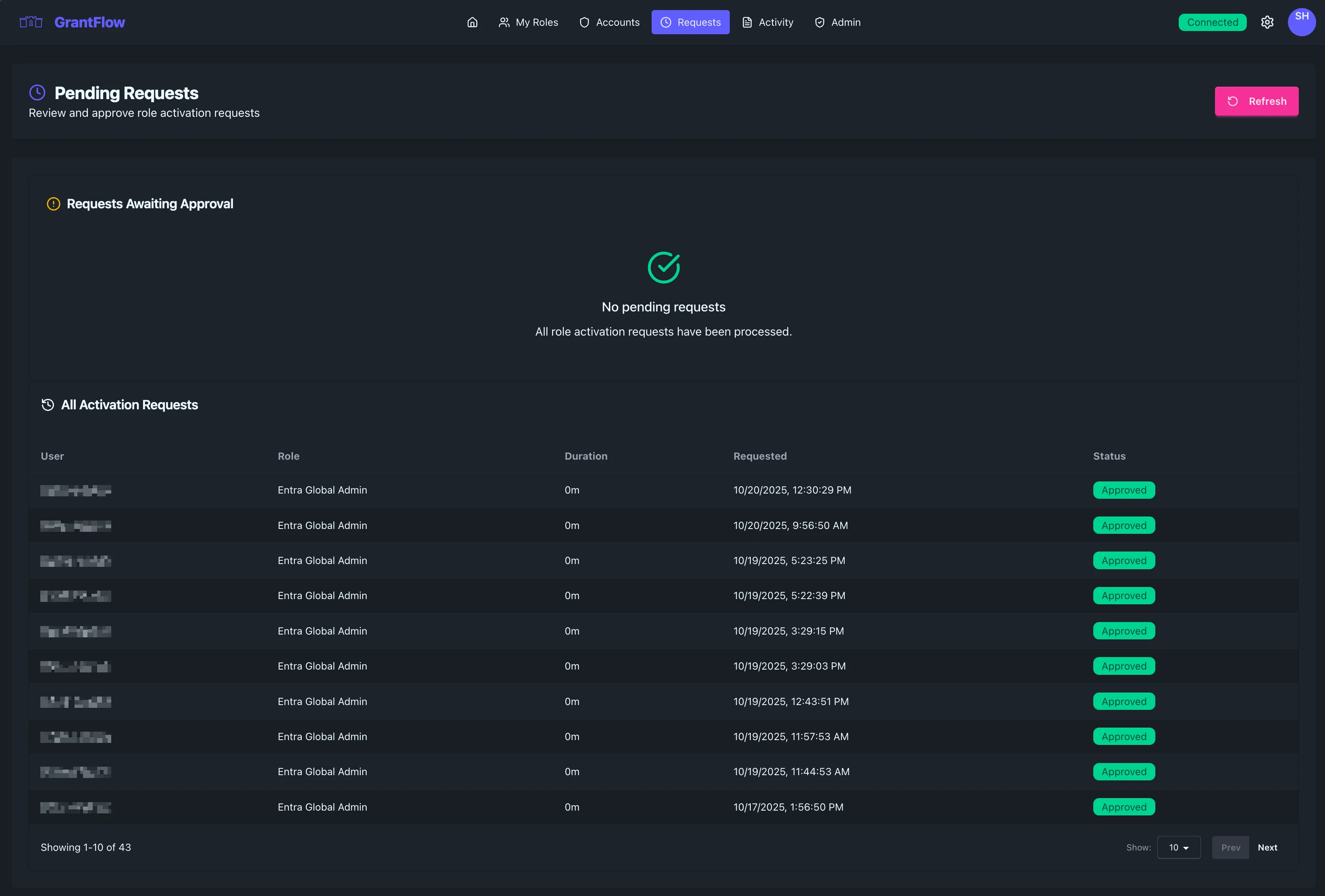
Use Pending Requests & Approvals to track your requests.
Status meanings
- Pending: Waiting for approvers
- Approved: Decision made; provisioning starts
- Active: Access is provisioned and live
- Denied: Request was rejected (reason provided)
- Cancelled: Withdrawn by you before approval
- Expired: Activation window ended
Withdrawing or correcting a request
If you need to change duration or justification, withdraw your pending request and submit a corrected one. This keeps the audit trail clean and avoids duplicates.
If timing is critical, add a brief note in the new justification that it replaces a withdrawn request.
Notifications
You’ll receive in‑app notifications and, if configured by your org, email or Teams messages for approvals, denials, activations, expirations, and cancellations.
After approval: using your access
Once approved, provisioning begins. Cloud roles (Entra ID) are typically ready within a minute. For on‑prem AD groups, allow extra time for agents. Open a fresh session where needed, then complete your task.
Extensions (more time)
If policy allows, you can request an extension from the active session card in My Roles. Request only what you need; some orgs require an approver to confirm extensions.
Troubleshooting
Pending for too long
Confirm all required approvers are assigned, check business hours, and contact approvers if urgent. Withdraw and resubmit if you need to correct details.
Approved but not active
Wait briefly, refresh, and open a new session in the target system. If it still isn’t active, review the Activity Log and ask an admin to check connector health.