Active Directory Agents
Agents run on your network to perform on‑premises Active Directory operations (enable/disable accounts, add/remove users from groups, directory sync). They connect outbound to the GrantFlow control plane (Agents service) using mutual TLS (mTLS) over HTTPS — no inbound firewall rules are required.
Use this page to enroll agents, verify health, review capabilities, and handle maintenance.
How enrollment works
- Outbound‑only mTLS HTTPS connection from the agent to the Agents service (
agents.grantflow.cloud, TCP/8443) - Agent identity starts with a short‑lived enrollment token, which is exchanged for an mTLS certificate issued by GrantFlow
- The certificate is stored locally, protected by DPAPI (Windows) or restricted file permissions (Linux), and rotated automatically before expiry
- Each agent is scoped to your tenant and gets its capabilities assigned by the control plane (e.g., account enable/disable, group membership)
INFO
For production, run at least two agents per critical domain and place them on different hosts or availability zones for resilience.
Prerequisites
- A (domain‑joined) Windows or Linux host with outbound internet access
- Outbound connectivity from the host to GrantFlow services:
- Agents service:
agents.grantflow.cloudover HTTPS (TCP/8443) - Enrollment service:
enrollment.grantflow.cloudover HTTPS (TCP/443)
- Agents service:
- If the agent does not run on a domain controller: outbound connectivity to your domain controllers (LDAP port 389 or LDAPS port 636)
- A service account in AD with the minimum required permissions for your use cases
- Admin access to GrantFlow to create enrollment tokens
Agent on a Domain Controller
When the agent runs directly on a domain controller, it connects to Active Directory via localhost. The connector's LDAP host, port, and TLS settings are ignored — directory traffic never leaves the host, which improves both performance and security. Network access to other domain controllers is not required in this scenario.
Step 1 — Generate an enrollment token
- Open Admin → Connectors → Active Directory → Agents tab
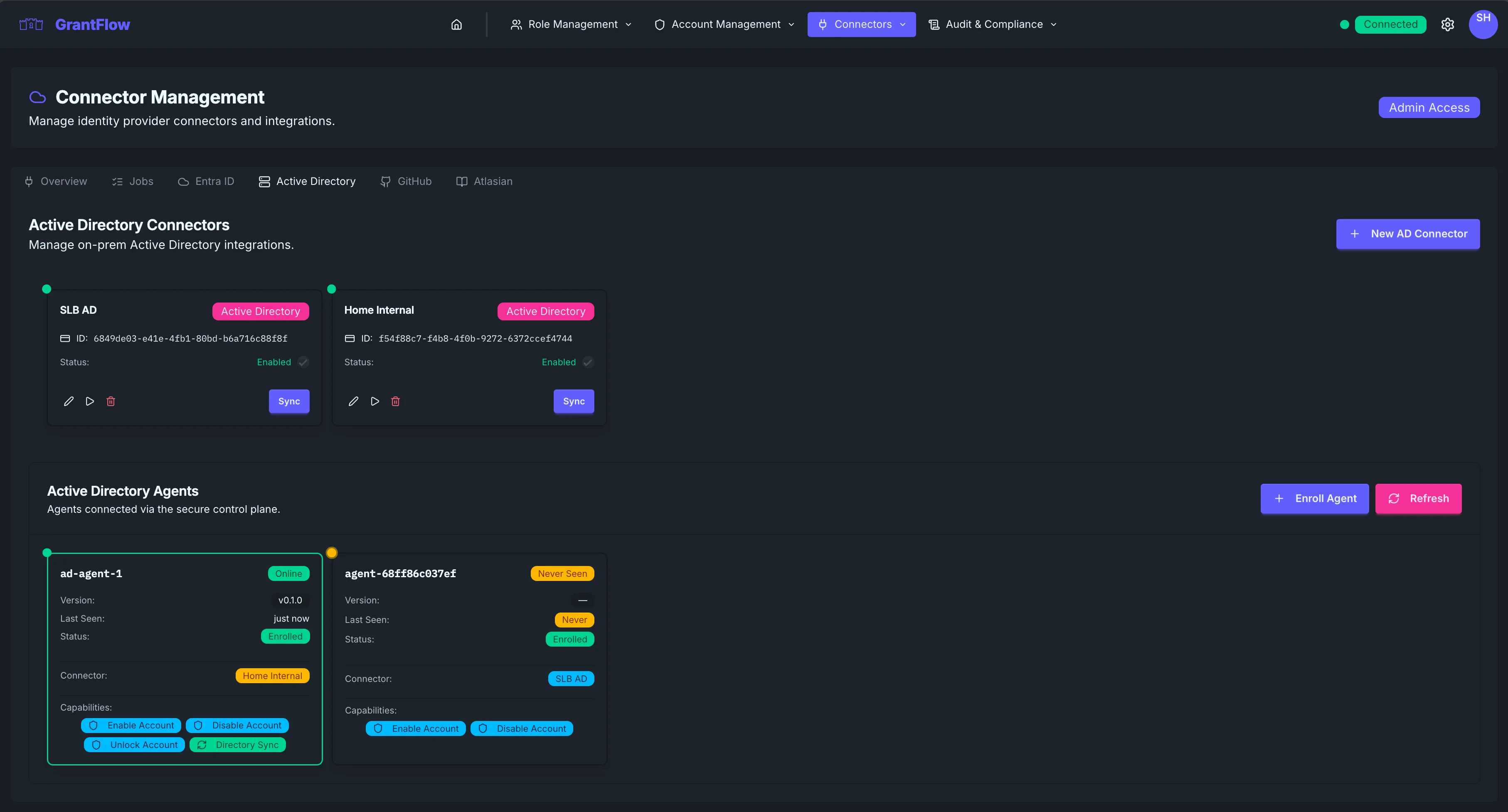
- Select Enroll Agent
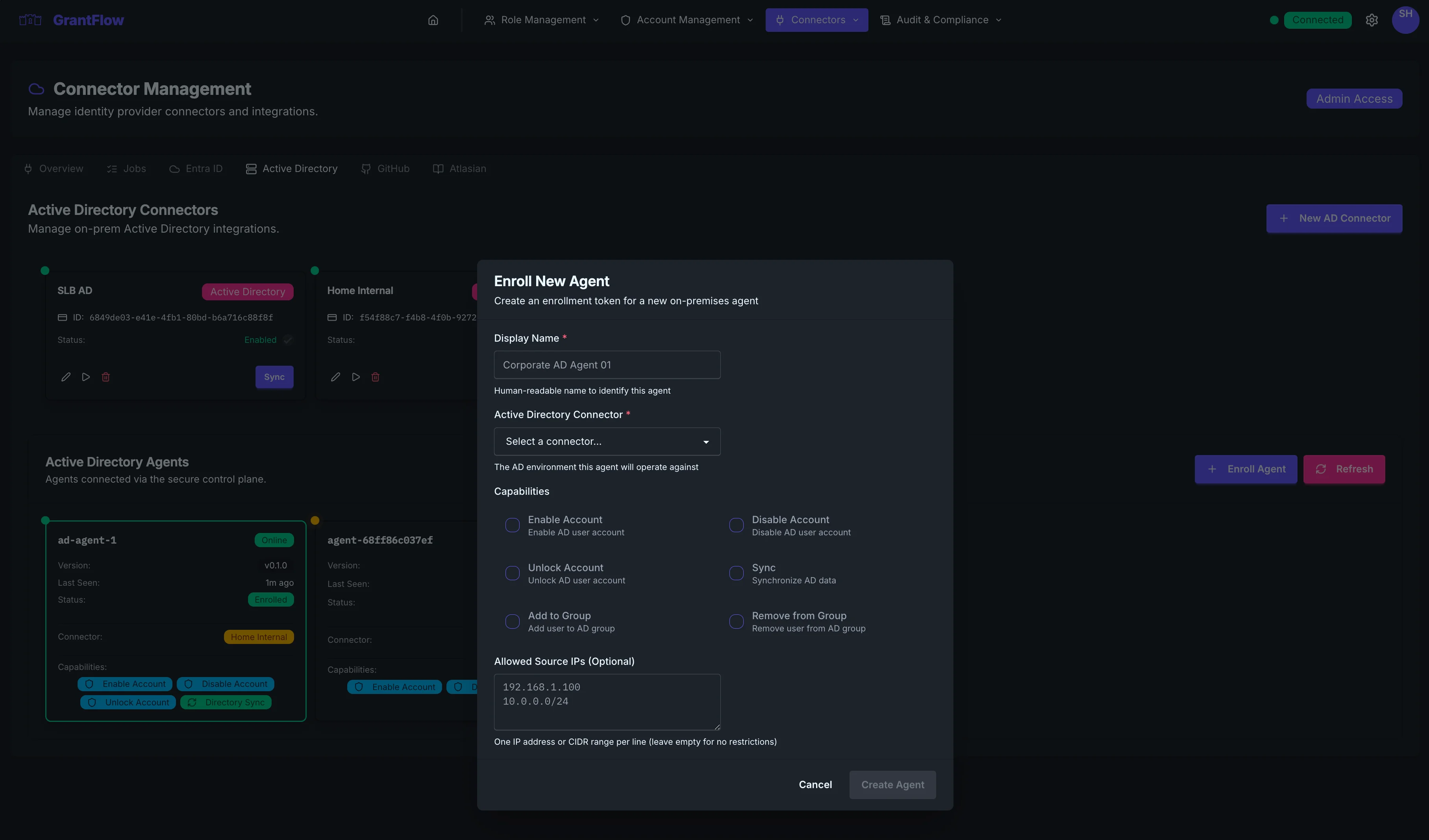
- Copy the enrollment token (time‑limited)
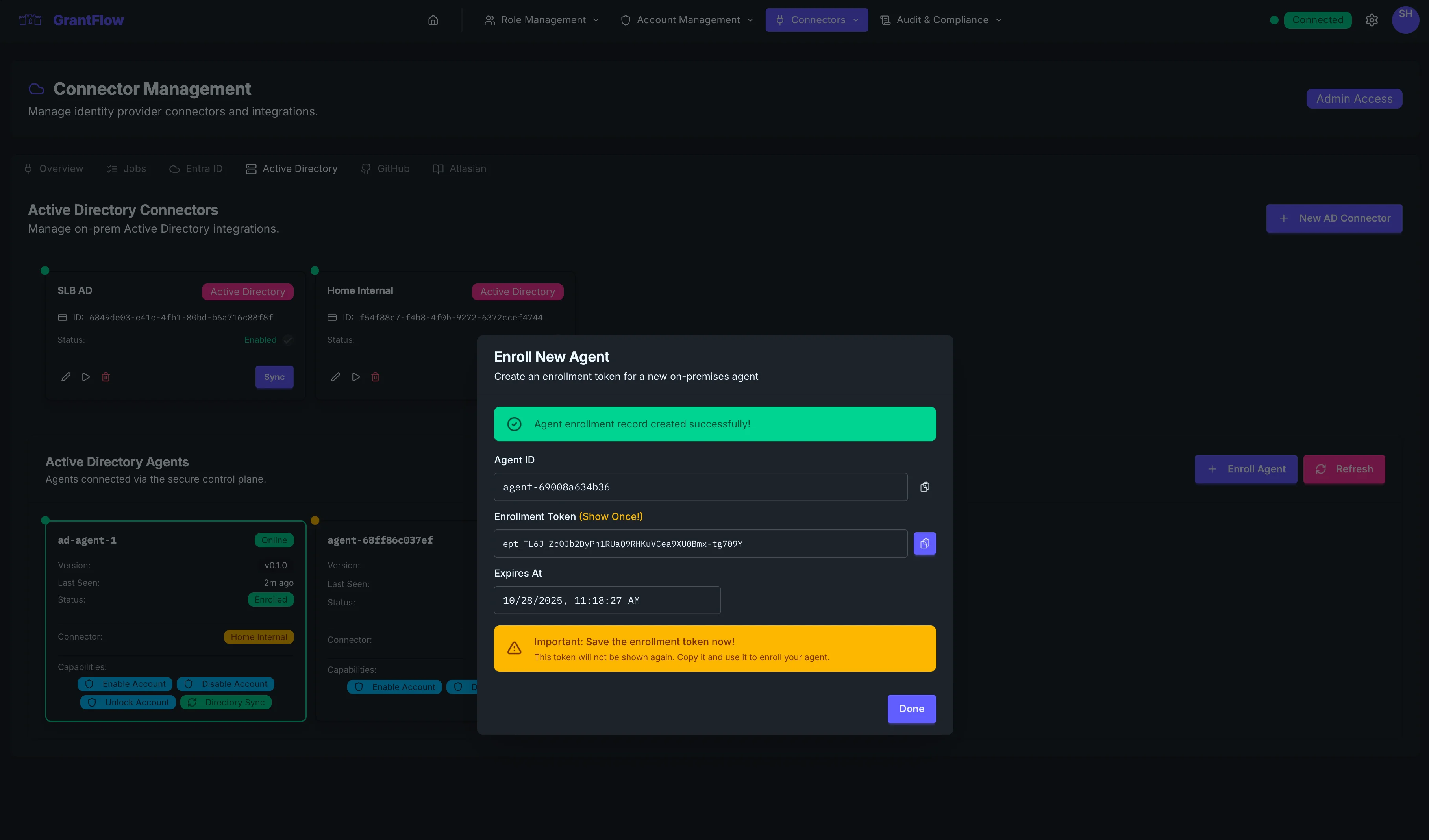
Token lifetime
Enrollment tokens expire quickly (about 1 hour). Start installation immediately after generating the token. If it expires, create a new one.
Automate with CLI
If you need to enroll multiple agents, you can generate enrollment tokens programmatically using the GrantFlow CLI and feed them into your install scripts (per host or in batches). See the CLI reference for details: CLI Reference.
Step 2 — Install the agent
Choose the method that matches your environment. Replace placeholders with your values. Do not paste secrets into documentation or tickets.
Download the agent binary
Open Admin → Connectors → Active Directory → Agents tab and select Download Agent. The download dialog shows the current version and provides binaries for every supported platform:
| Platform | Architectures |
|---|---|
| Windows | x64, ARM64 |
| Linux | x64, ARM64 |
Each download includes a SHA-256 hash you can use to verify file integrity after transfer. Expand the Verify integrity section in the download dialog to see and copy the hash for your platform.
Verify the download
After copying the binary to your target host, compare the file hash against the value shown in the download dialog to confirm the file was not altered in transit.
Windows (PowerShell):
Get-FileHash .\agent.exe -Algorithm SHA256Linux:
sha256sum ./agentWindows (Service)
Prerequisites
- Windows Server 2016 or later
- Administrator privileges for installation
- Outbound HTTPS access to
enrollment.grantflow.cloud(TCP/443) andagents.grantflow.cloud(TCP/8443) - Network access to your domain controllers (LDAP port 389 or LDAPS port 636) — not required when the agent runs directly on a domain controller
Installation Steps
Download the agent binary from the download dialog above and copy it to the target Windows host (e.g.,
C:\Program Files\GrantFlow Agent\agent.exe)Create the installation directory structure:
powershell# Create directory structure New-Item -ItemType Directory -Force -Path "C:\Program Files\GrantFlow Agent" New-Item -ItemType Directory -Force -Path "C:\Program Files\GrantFlow Agent\config" New-Item -ItemType Directory -Force -Path "C:\Program Files\GrantFlow Agent\certs" # Copy agent.exe to installation directory Copy-Item agent.exe "C:\Program Files\GrantFlow Agent\agent.exe"Enroll the agent with the enrollment token from Step 1:
powershellcd "C:\Program Files\GrantFlow Agent" # Enroll the agent (replace placeholders) .\agent.exe enroll ` --enrollment-url https://enrollment.grantflow.cloud/enroll ` --tenant-id YOUR_TENANT_ID ` --agent-id YOUR_AGENT_ID ` --token YOUR_ENROLLMENT_TOKENThis creates:
- Configuration file:
config\agent-config.yamlwith absolute paths - Certificate files:
certs\agent-cert.pem,certs\agent-key.pem,certs\ca-chain.pem
- Configuration file:
Install the Windows service:
powershellcd "C:\Program Files\GrantFlow Agent" .\agent.exe service installThe service is configured to:
- Run as
NT AUTHORITY\LocalService(least privilege) - Start automatically on system boot
- Restart on failure
- Write logs to
C:\Windows\Temp\grantflow-agent-YYYYMMDD.log(one file per day)
- Run as
Grant Local Service permissions to access certificates and configuration:
powershell# Grant read access to certs and config directories icacls "C:\Program Files\GrantFlow Agent\certs" /grant "NT AUTHORITY\LocalService:(OI)(CI)R" /T icacls "C:\Program Files\GrantFlow Agent\config" /grant "NT AUTHORITY\LocalService:(OI)(CI)R" /TStart the service:
powershellcd "C:\Program Files\GrantFlow Agent" .\agent.exe service startVerify the service is running:
powershell# Check service status .\agent.exe service status # Verify service account sc.exe qc GrantFlowAgent # Should show: SERVICE_START_NAME : NT AUTHORITY\LocalService # View today's log file Get-Content C:\Windows\Temp\grantflow-agent-$(Get-Date -Format "yyyyMMdd").log
Service Management Commands
cd "C:\Program Files\GrantFlow Agent"

# Check service status
.\agent.exe service status

# Stop the service
.\agent.exe service stop

# Start the service
.\agent.exe service start

# Restart the service
.\agent.exe service stop
.\agent.exe service start

# Uninstall the service
.\agent.exe service uninstall

# View today's log file
Get-Content C:\Windows\Temp\grantflow-agent-$(Get-Date -Format "yyyyMMdd").log

# Tail logs in real-time
Get-Content C:\Windows\Temp\grantflow-agent-$(Get-Date -Format "yyyyMMdd").log -Wait -Tail 50
Updating the Agent
When a newer version is available, agent cards and the agent detail panel display an Update available badge. To update:
Stop the service:
powershellcd "C:\Program Files\GrantFlow Agent" .\agent.exe service stopReplace
agent.exewith the new versionStart the service:
powershell.\agent.exe service start
The configuration and certificates are preserved during updates.
Fixing Configuration Files (Legacy)
If you have an old configuration file with relative paths that don't work with the Windows service:
cd "C:\Program Files\GrantFlow Agent"
.\agent.exe fix-config --config .\config\agent-config.yaml
This command:
- Converts relative paths to absolute paths
- Verifies certificate files exist
- Creates a backup before making changes
- Saves the updated configuration
Note: New enrollments automatically create configuration files with absolute paths, so this command is only needed for older installations.
Linux (systemd)
Prerequisites
- Linux distribution with systemd (RHEL/CentOS 7+, Ubuntu 16.04+, Debian 9+)
- Root or sudo access for installation
- Outbound HTTPS access to
enrollment.grantflow.cloud(TCP/443) andagents.grantflow.cloud(TCP/8443) - Network access to your domain controllers (LDAP port 389 or LDAPS port 636) — not required when the agent runs directly on a domain controller
Installation Steps
Download the agent binary from the download dialog above and copy it to the target Linux host:
bash# Create installation directory sudo mkdir -p /opt/grantflow-agent/{config,certs} # Copy agent binary sudo cp agent /opt/grantflow-agent/agent sudo chmod +x /opt/grantflow-agent/agentEnroll the agent:
bashcd /opt/grantflow-agent # Enroll (replace placeholders) sudo ./agent enroll \ --enrollment-url https://enrollment.grantflow.cloud/enroll \ --tenant-id YOUR_TENANT_ID \ --agent-id YOUR_AGENT_ID \ --token YOUR_ENROLLMENT_TOKENCreate a dedicated service user:
bashsudo useradd --system --no-create-home --shell /bin/false grantflow-agent sudo chown -R grantflow-agent:grantflow-agent /opt/grantflow-agentInstall the systemd service:
bashcd /opt/grantflow-agent sudo ./agent service installStart the service:
bashsudo ./agent service start # Enable on boot sudo systemctl enable grantflow-agentVerify the service is running:
bashsudo ./agent service status # Or use systemctl sudo systemctl status grantflow-agent
Service Management Commands
cd /opt/grantflow-agent

# Check service status
sudo ./agent service status

# Stop the service
sudo ./agent service stop

# Start the service
sudo ./agent service start

# Restart the service
sudo systemctl restart grantflow-agent

# Uninstall the service
sudo ./agent service uninstall

# View logs (systemd journal)
sudo journalctl -u grantflow-agent -f
Least privilege
The Windows service runs as NT AUTHORITY\LocalService and the Linux service should run as a dedicated user with minimal permissions. Avoid running as root/Administrator except during installation.
Step 3 — Verify health
Return to Admin → Connectors → Active Directory → Agents tab. The new agent should appear within a few seconds:
- Online status with heartbeat time (“last seen”)
- Agent version and platform — an Update available badge appears when a newer release exists
- Assigned capabilities
If it doesn’t appear online within 1–2 minutes, see Troubleshooting below.
Step 4 — Assign the agent to a connector
The agent should already be assigned to the connector you selected in Step 1. If you want to assign the agent to another connector, open the agent’s properties and change the assignment.
Multiple agents
You can assign multiple agents to the same connector for high availability. The control plane dispatches jobs based on health and capacity.
Certificates and rotation
- The agent receives an mTLS certificate during enrollment and stores it securely on disk
- Certificates renew automatically well before expiry; no downtime is expected
- To force renewal, you can re‑enroll the agent with a fresh token (the old cert is rotated out)
Maintenance
- Keep at least two agents per critical domain; update them in a rolling fashion
- Monitor heartbeats and job queues; investigate sustained backlogs or repeated failures
- Log level is conservative by default; increase temporarily when diagnosing issues, then revert
Log Files and Monitoring
Windows Logs
The Windows agent writes logs to C:\Windows\Temp\grantflow-agent-YYYYMMDD.log with one file per day. All service starts, stops, and operations on the same day are written to the same log file.
View today's log:
# View entire log file
Get-Content C:\Windows\Temp\grantflow-agent-$(Get-Date -Format "yyyyMMdd").log

# Tail the log (live view)
Get-Content C:\Windows\Temp\grantflow-agent-$(Get-Date -Format "yyyyMMdd").log -Wait -Tail 50

# View logs from a specific date
Get-Content C:\Windows\Temp\grantflow-agent-20251103.log
Clean up old logs:
# Delete logs older than 30 days
Get-ChildItem C:\Windows\Temp\grantflow-agent-*.log |
  Where-Object { $_.LastWriteTime -lt (Get-Date).AddDays(-30) } |
  Remove-Item
Linux Logs
The Linux agent logs to systemd journal. Use journalctl to view logs:
# View agent logs
sudo journalctl -u grantflow-agent

# Tail logs (live view)
sudo journalctl -u grantflow-agent -f

# View logs since last boot
sudo journalctl -u grantflow-agent -b

# View logs from specific time range
sudo journalctl -u grantflow-agent --since "2025-11-03 10:00" --until "2025-11-03 12:00"
What to Look For
Successful startup:
=== GrantFlow Agent Service Started ===
Log file: C:\Windows\Temp\grantflow-agent-20251103.log
Agent ID: agent-001
Tenant ID: YOUR_TENANT_ID
Control Plane: https://agents.grantflow.cloud:8443
Certificate: C:\Program Files\GrantFlow Agent\certs\agent-cert.pem
All certificate files verified, starting agent...
Successfully connected to control plane
Agent registered and ready to receive jobs
Common issues:
FATAL: Certificate file not found- Certificate paths are incorrect or files missingFATAL: Failed to connect to control plane- Network connectivity issuesConnection refused- Control plane not reachable or firewall blockingTLS handshake failed- Certificate issues or clock skew
Troubleshooting
Agent shows Offline
Service not running:
# Windows
cd "C:\Program Files\GrantFlow Agent"
.\agent.exe service status
.\agent.exe service start# Linux
sudo systemctl status grantflow-agent
sudo systemctl start grantflow-agentNetwork connectivity:
- Verify outbound HTTPS (TCP/8443) to
agents.grantflow.cloudand HTTPS (TCP/443) toenrollment.grantflow.cloud - Test with:
curl -v https://agents.grantflow.cloud:8443(should return HTTP response) - Check LDAP/LDAPS connectivity to domain controllers (port 389/636)
- Ensure no proxies interfere with the connection to GrantFlow services
Clock skew:
- Ensure NTP is working; large clock skew breaks TLS
- Windows:
w32tm /query /status - Linux:
timedatectl status
Proxy/SSL inspection:
- Bypass or allowlist the Agents service endpoint
- Configure proxy settings if required (environment variables or system settings)
Enrollment failed
Token expired:
- Enrollment tokens expire after 1 hour
- Generate a new token from Admin → Connectors → Active Directory → Agents → Enroll Agent
- Complete enrollment immediately after generating the token
TLS errors:
- Check host time and ensure NTP is synchronized
- Verify trust store includes necessary root certificates
- Check local firewall rules allow outbound HTTPS to
enrollment.grantflow.cloud
Permission denied:
- Ensure your GrantFlow user has Admin role
- Verify the enrollment token is correct (copy/paste carefully)
Certificate file errors:
Check the log file for details:
# Windows - view today's log
Get-Content C:\Windows\Temp\grantflow-agent-$(Get-Date -Format "yyyyMMdd").log
Common issues:
Certificate file not found- Check that enrollment created the files incerts\directoryPermission denied- Local Service account needs read access (see installation steps)Invalid certificate- Certificate may be corrupted or enrollment failed
Service won't start on Windows
Verify service account permissions:
# Grant Local Service read access to required directories
icacls "C:\Program Files\GrantFlow Agent\certs" /grant "NT AUTHORITY\LocalService:(OI)(CI)R" /T
icacls "C:\Program Files\GrantFlow Agent\config" /grant "NT AUTHORITY\LocalService:(OI)(CI)R" /T
Verify service configuration:
# Check service account
sc.exe qc GrantFlowAgent
# Should show: SERVICE_START_NAME : NT AUTHORITY\LocalService

# If it shows LocalSystem, reinstall the service
.\agent.exe service uninstall
.\agent.exe service install
Check for path issues:
If you have an old configuration file with relative paths:
cd "C:\Program Files\GrantFlow Agent"
.\agent.exe fix-config --config .\config\agent-config.yaml
Jobs failing
AD credentials:
- Ensure the connector's bind account credentials are correct
- Verify the service account has required AD permissions
- Test LDAP bind:
ldp.exe(Windows) orldapsearch(Linux)
LDAPS certificate issues:
- Verify DC certificate is trusted when LDAPS (port 636) is enabled
- Check certificate chain and expiration
- Test LDAPS connectivity:
openssl s_client -connect dc.example.com:636
Connector scope:
- Confirm the Base DN and filters include the target objects
- Check that the agent is assigned to the correct connector
- Verify organizational unit (OU) structure matches configuration
Job queue backlog:
- Check Agent tab in GrantFlow for job queue depth
- Multiple failed jobs may indicate configuration or permission issues
- Review job history and error messages in the connector logs
Re-enrolling an Agent
If certificate issues persist or you need to reset the agent:
Stop and uninstall the service:
powershell# Windows cd "C:\Program Files\GrantFlow Agent" .\agent.exe service stop .\agent.exe service uninstallbash# Linux sudo /opt/grantflow-agent/agent service stop sudo /opt/grantflow-agent/agent service uninstallDelete old certificates and configuration:
powershell# Windows Remove-Item "C:\Program Files\GrantFlow Agent\certs\*" -Force Remove-Item "C:\Program Files\GrantFlow Agent\config\agent-config.yaml" -Forcebash# Linux sudo rm -f /opt/grantflow-agent/certs/* sudo rm -f /opt/grantflow-agent/config/agent-config.yamlGenerate a new enrollment token from GrantFlow Admin UI
Re-enroll the agent following the installation steps above
Reinstall and start the service
The agent will receive a new certificate and configuration.