Account Checkout
The Account Checkout page lets you temporarily check out privileged or scope fitted accounts with time‑limited access to credentials. This enables secure management of scope fitted administrative accounts.
Overview
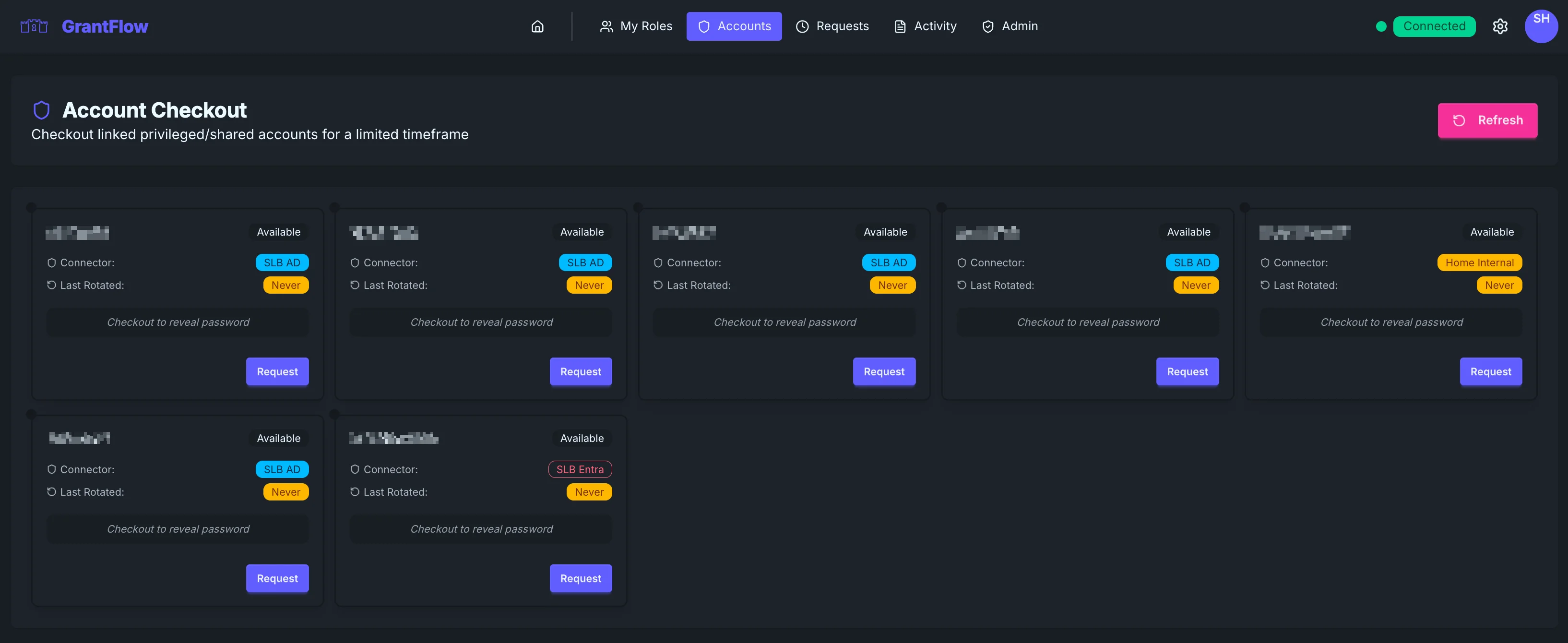
Account Checkout lists the privileged accounts you’re allowed to use. These are typically scope fitted admin identities or service accounts that require strict handling. When you check out an account, the system reveals credentials for a limited time and records the entire action in the audit trail.
Account Cards
Each card summarizes the account name, its availability, the managing connector (for example, “SLB AD” or “SLB Entra”), and when the password was last rotated. Credentials are never visible until you complete a checkout—before that, you’ll see a clear prompt indicating that a checkout is required to reveal the password.
Account types
Depending on your environment, accounts may come from Active Directory, Entra ID, or other connectors such as GitHub or Atlassian.
For Entra ID accounts, the card also displays the User Principal Name (UPN) so you can identify the exact sign-in identity.
Checking out an account
To check out an account, select Request on the card to open the checkout dialog. Choose how long you need access and provide a concise justification. When you submit, the request follows the same approval and auditing patterns as role activations.
After checkout
After approval (or immediately if auto‑approved), the password is revealed so you can copy it securely. The account’s status changes to Checked Out for other users, and the action is fully recorded in the audit log.
Password Manager Export
After revealing a password, you can export it directly to your password manager. Click the Export button in the credential display to copy the credentials in a format compatible with common password managers. This avoids manual copying and reduces the risk of clipboard exposure.
INFO
Export formats credentials as a one-time-use package. The exported data is not stored by GrantFlow and should be imported into your password manager immediately.
Account Links
Accounts can be linked to show related identities across connectors. Click the Account Links badge on any account card to view a modal showing all linked accounts — for example, an AD account linked to its corresponding Entra ID identity. This helps you understand the full scope of an account's access.
Password rotation
Automatic rotation
GrantFlow can rotate passwords automatically on checkout, on check‑in, or on a set schedule—your administrator controls the policy.
Manual rotation
Administrators can also trigger manual rotations from the Admin section, via API, or during security events.
Best practices
When to use account checkout
Use checkout for scope fitted administrative identities, service accounts that occasionally require human action, emergency access scenarios, or when compliance demands segregation of duties.
Duration guidelines
Request only the time you truly need—many teams keep these windows short (often one to four hours) and require extra approval for longer periods.
Security considerations
Never paste credentials into tickets or chat tools. If you must store them temporarily, use an approved password manager and only for as long as necessary. Rotate immediately if you suspect exposure, check in the account when you’re finished (or allow it to expire), and document what you did and why in the justification. Never share checked‑out credentials.
Account status
Accounts cycle between a few states. Available accounts can be checked out immediately. Checked Out indicates the account is in use. Unavailable appears during policy restrictions or rotations. Expired marks the end of a previous checkout window.
Live updates
The page updates automatically so availability, your active checkouts, and rotation status changes stay in sync without manual refresh.
Page actions
Refresh
Use Refresh to manually reload the account list if you suspect your view is out of date.
Troubleshooting
Account not available
If an account appears unavailable, it may already be checked out by someone else, undergoing a password rotation, or subject to a temporary administrative restriction. Check the Activity Log for recent changes.
Cannot see expected accounts
If you don’t see an expected account, you may not have permission or the account may be assigned to a different group. Contact your administrator to verify your assignments.
Password not revealed after checkout
If credentials don’t appear after approval, confirm your connection status and wait a short time for the connector to sync. You can also check the Requests page to verify approval is complete.
Integration with My Roles
Checked‑out accounts can be used with role activations. First check out the account, then request a role from My Roles and choose the checked‑out identity in the Acting as field. The activation will apply to that account instead of your personal user, enabling secure elevation for scope fitted identities.
FAQ
Can I share a checked‑out password with a teammate? No. If someone else needs access, they must perform their own checkout per policy.
What happens if I forget to check in? The checkout expires automatically at the set time, and rotation may occur depending on policy.
Can I extend a checkout? If policy allows, request a new checkout before the current one expires.