Requests for Approvers
This guide is for approvers who review and decide on activation requests. It complements the main Pending Requests & Approvals page with review‑specific steps and decision guidance.
Your approval queue
Open Pending Requests & Approvals. The top section, “Requests awaiting approval,” lists items assigned to you or your approver group.
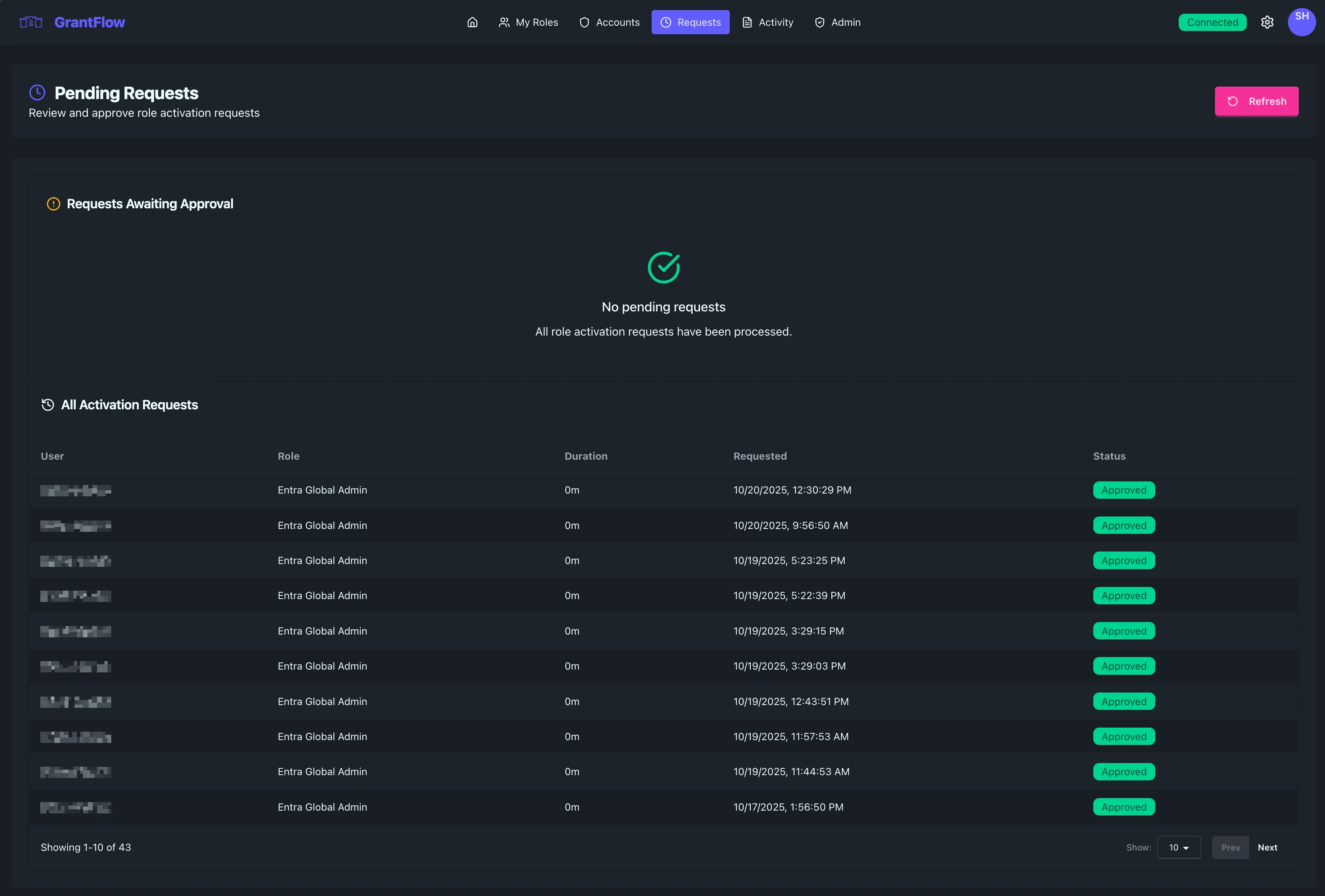
Each request shows the requester, role, requested duration, and justification. Select a row to open details.
Reviewing execution history (after approval)
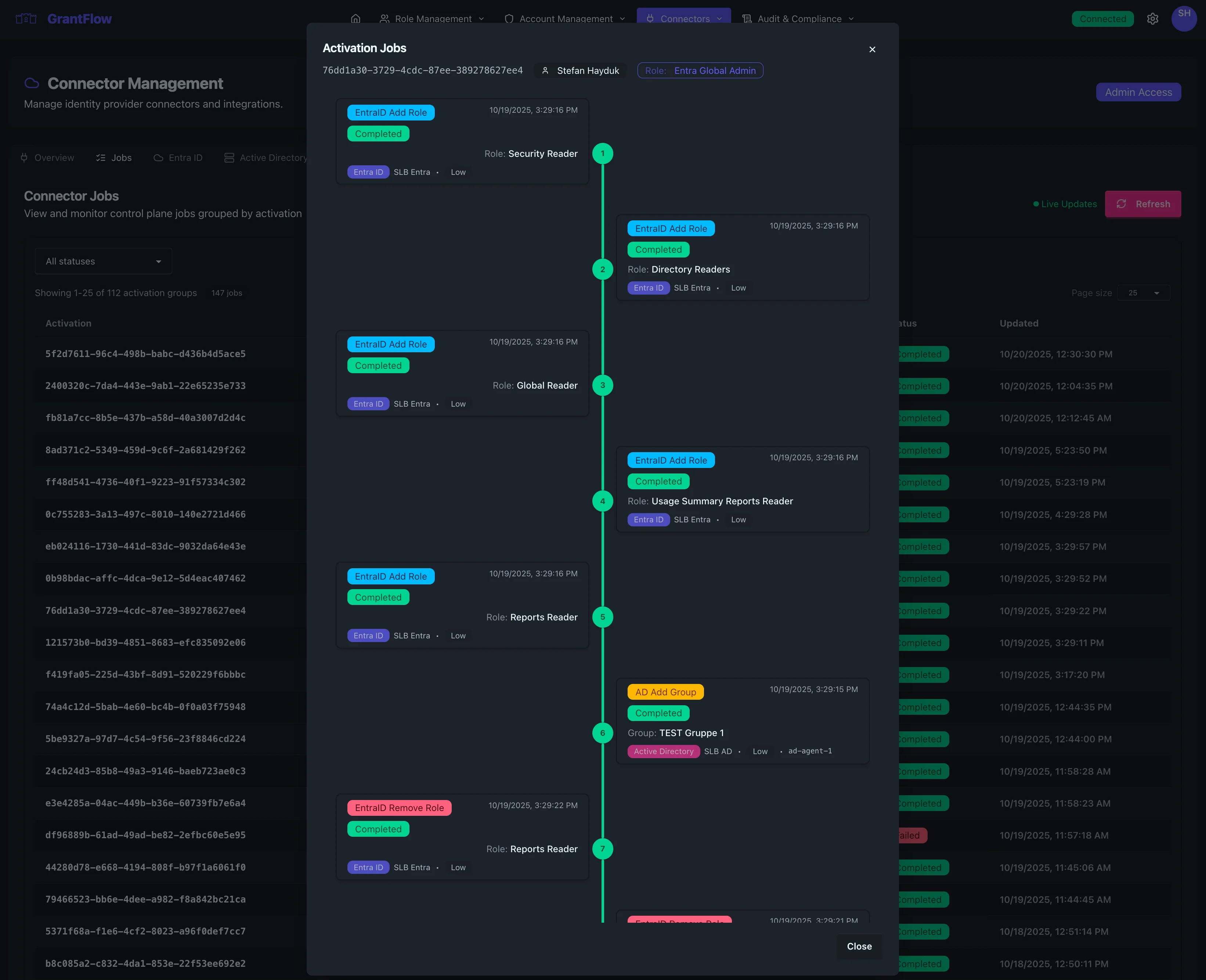
If you need to verify provisioning outcomes, open Connector Jobs from Admin and inspect the activation’s job history.
Review checklist
- Does the justification clearly explain the task and include ticket/change references?
- Is the requested duration appropriate for the work?
- Does the role’s provisioning preview match the intended permissions and environment?
- Are there conflicts with separation‑of‑duties or scheduling windows?
TIP
Open the role’s provisioning details to confirm exactly what access will be granted before approving.
Making a decision
Use Approve to grant or Deny to reject. Add a short note—especially on denials—to provide clear guidance to the requester. Notes are part of the audit trail and may be visible to the requester.
If your organization has set up GrantFlow for Microsoft Teams, you can also approve or deny from the approval card in Teams. The decision is the same as one made in the portal. In the audit trail it shows the channel teams and no client IP address or user agent, because the request reaches GrantFlow through the Microsoft Bot Framework and not from your device.
Deciding in Microsoft Teams
The card arrives in your 1:1 GrantFlow chat and shows the requester, the role, the account if the request is for one, the duration, the request time and the justification. Select Approve to approve. To deny, select Deny, enter a reason of up to 1000 characters, and select Deny request. The reason is required, and the same cleaning rules apply as in the portal. Open in GrantFlow takes you to the request in the portal.
The card stays current. Whenever the request changes, GrantFlow edits every approver's card, whoever made the change and wherever they made it: a decision in the portal or in Teams, a cancellation, provisioning, or the end of the activation. Teams also asks GrantFlow for a fresh card when you view it. Each card is drawn for you, so after you approve a request that needs a second approver, your card reads You approved and shows how many approvals are still missing, while the other approvers still see Approve and Deny. Once the request is approved, the card follows the access through Provisioning…, Active until a time in UTC, Ending… and Ended, or shows that provisioning or removal failed. Denied and cancelled cards show the outcome and stop changing.
A card that is behind is still safe to use. If you click a card for a request that someone else has already decided, GrantFlow refuses the action and shows the request's current state.
Known limitations
If the card is edited while you are typing a denial reason, the reason you typed is discarded and you need to enter it again. An approver who is added to a request that is already pending gets no card until the request next changes. They can still decide in the portal.
Denial reasons
A denial needs a reason of up to 1000 characters. GrantFlow counts characters, not bytes, so a reason in a language with accented or non-Latin letters gets the same 1000.
Before the reason is checked and saved, GrantFlow removes characters that are invisible or that could change how the text is displayed: control characters, Unicode direction overrides and isolates, zero-width spaces and similar invisible characters. Tabs become spaces, line breaks are kept, and spaces at the start and end are trimmed. The cleaned reason is what the requester sees and what the audit trail and the notification email contain. A reason that is empty after cleaning, for example one made only of spaces, is refused.
Multi‑approver policies
Some roles require more than one approver. The banner indicates how many approvals are required and how many have been collected so far. Approvals can be parallel or sequential depending on policy.
Under a policy that needs two approvers, each person counts once. If you approve a request that is still waiting for the second approver again, for example by clicking twice, retrying, or approving from a second device or from Teams, GrantFlow shows you the request but does not record a second approval or a second audit event.
Notifications
You’ll receive notifications about assigned requests and escalations per your organization’s settings (in‑app or email), plus a Teams approval card for each new request if your organization uses them. Requesters are notified when you approve or deny.
Best practices
- Respond promptly to reduce bottlenecks
- Ask for clarification via notes when needed
- Favor least‑privilege: confirm scope and duration are minimal
- Document denial reasons clearly and professionally
Troubleshooting
Requests not appearing
Confirm you are an assigned approver for the role or policy. If your queue is empty but you expect items, verify group membership and check business hours or delegation rules.
Stuck in Pending
If other approvers are required, ensure they have acted. If delays continue, follow your escalation path or reassign if supported.