Requests for Approvers
This guide is for approvers who review and decide on activation requests. It complements the main Pending Requests & Approvals page with review‑specific steps and decision guidance.
Your approval queue
Open Pending Requests & Approvals. The top section, “Requests awaiting approval,” lists items assigned to you or your approver group.
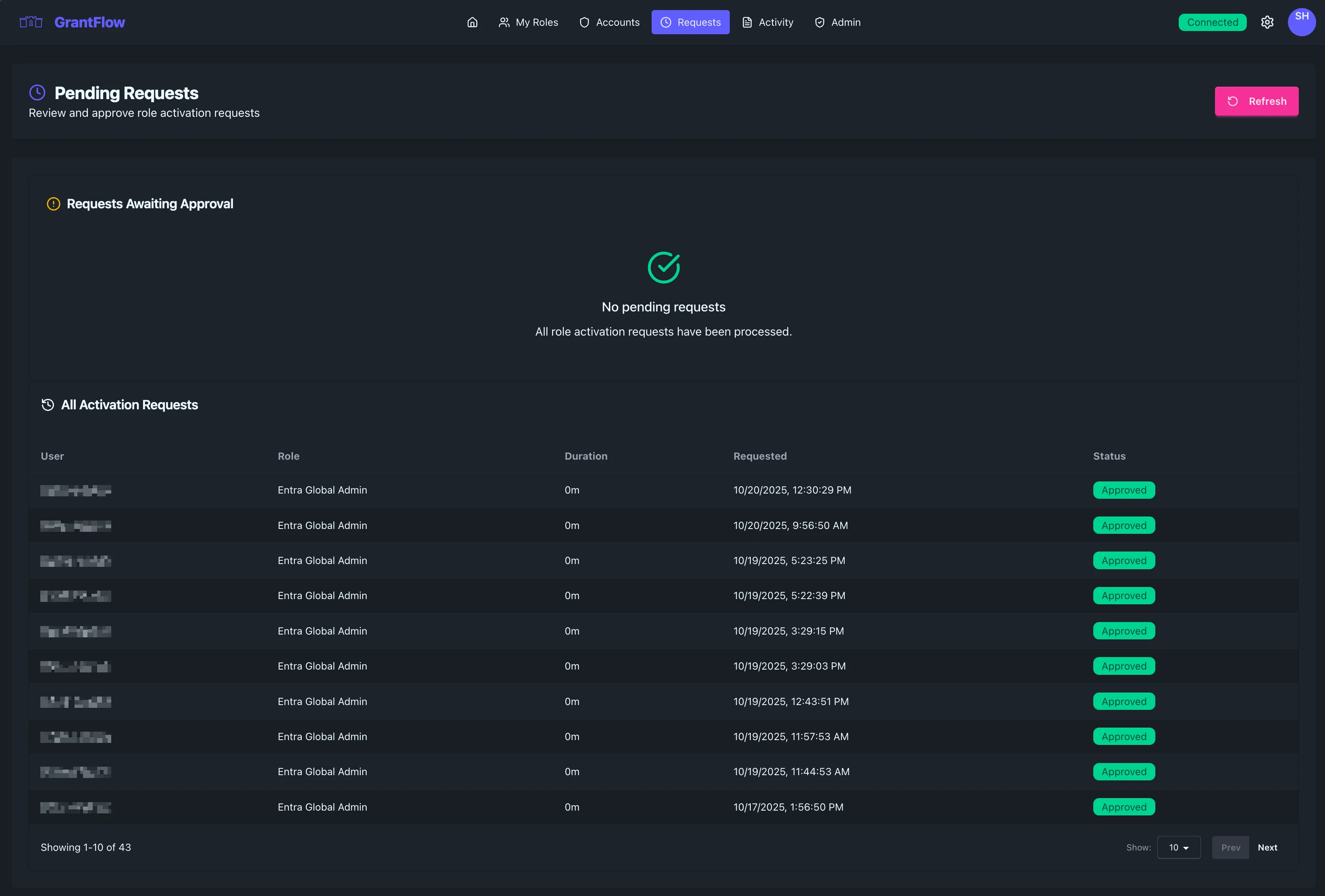
Each request shows the requester, role, requested duration, and justification. Select a row to open details.
Reviewing execution history (after approval)
If you need to verify provisioning outcomes, open Connector Jobs from Admin and inspect the activation’s job history.

Review checklist
- Does the justification clearly explain the task and include ticket/change references?
- Is the requested duration appropriate for the work?
- Does the role’s provisioning preview match the intended permissions and environment?
- Are there conflicts with separation‑of‑duties or scheduling windows?
Open the role’s provisioning details to confirm exactly what access will be granted before approving.
Making a decision
Use Approve to grant or Deny to reject. Add a short note—especially on denials—to provide clear guidance to the requester. Notes are part of the audit trail and may be visible to the requester.
Multi‑approver policies
Some roles require more than one approver. The banner indicates how many approvals are required and how many have been collected so far. Approvals can be parallel or sequential depending on policy.
Notifications
You’ll receive notifications about assigned requests and escalations per your organization’s settings (in‑app, email, or Teams). Requesters are notified when you approve or deny.
Best practices
- Respond promptly to reduce bottlenecks
- Ask for clarification via notes when needed
- Favor least‑privilege: confirm scope and duration are minimal
- Document denial reasons clearly and professionally
Troubleshooting
Requests not appearing
Confirm you are an assigned approver for the role or policy. If your queue is empty but you expect items, verify group membership and check business hours or delegation rules.
Stuck in Pending
If other approvers are required, ensure they have acted. If delays continue, follow your escalation path or reassign if supported.